How lookups work
Drisiúr has one design rule for looking things up: no service is load-bearing. Delicious Library died when Amazon switched off its feed. Drisiúr asks a list of services in turn, and a service that’s down, out of its daily limit or missing its key is skipped, not fatal.
- You scan or type.A barcode, an ISBN or a title, from the webcam, a photo or the keyboard.
- Services are asked in order.The order on the Plugins page, top first. Switched-off services leave the list entirely.
- The first real answer becomes the record.If it comes back without a cover or a year, the other services are asked to fill the gaps. Your title and barcode are kept.
- Covers come from everyone.The cover chooser asks every service for its picture of the exact edition, other editions and other pressings, so you can pick yours.
Plugins you add join this list. A plugin that answers a built-in kind, such as Bottles, is asked after the built-in services unless you move it up. A plugin that answers a category of your own, such as Coins, is the only thing that looks that category up.
The dots in the bar at the bottom of the window, Lookups (plugins), show how the services are doing. A service that fails is marked, and the next one is asked.
Built in
These come with Drisiúr and appear in Preferences → Plugins. The ones without a key work straight away. The rest are free for personal use, and the Plugins page links to where you get each key.
| Service | Looks up | Key |
|---|---|---|
| Open Library | Books | None |
| Google Books | Books and their artwork | Optional. A key lifts the daily limit |
| Discogs | Vinyl and CDs, with front and back artwork | Personal token |
| MusicBrainz | Music, with artwork from the Cover Art Archive | None |
| TMDB | Films: posters, directors, runtimes | API key |
| IGDB | Video games: artwork, developers, platforms | A Twitch app’s client ID and secret |
| TheGamesDB | Scans of the real box for each platform, so the case on your shelf looks like yours | API key |
| UPCitemdb | Turns a film, game or board-game barcode into a title, and finds the shop’s photo of that exact edition’s case | None. 100 lookups a day |
| BoardGameGeek | Board games: box art, players, play time and box sizes | Application token. Approval can take a week |
| Comic Vine | Comics and manga: series, issues and their artwork | API key |
| Rebrickable | LEGO: each set’s number, theme, piece count and a picture of the model | API key |
| BrickLink | LEGO: a picture of each set’s box | None |
| Pokémon TCG | Trading cards: every printing’s picture, set, number and rarity, and today’s Cardmarket and TCGplayer prices. Magic cards come from Scryfall and Yu-Gi-Oh! from YGOPRODeck | Optional. A key raises the limits |
| AmiiboAPI | Every amiibo, with its picture and release date | None |
Claude
Claude isn’t a lookup, and sits at the bottom of the list, out of the order. It uses your own Anthropic API key and does nothing without one. It:
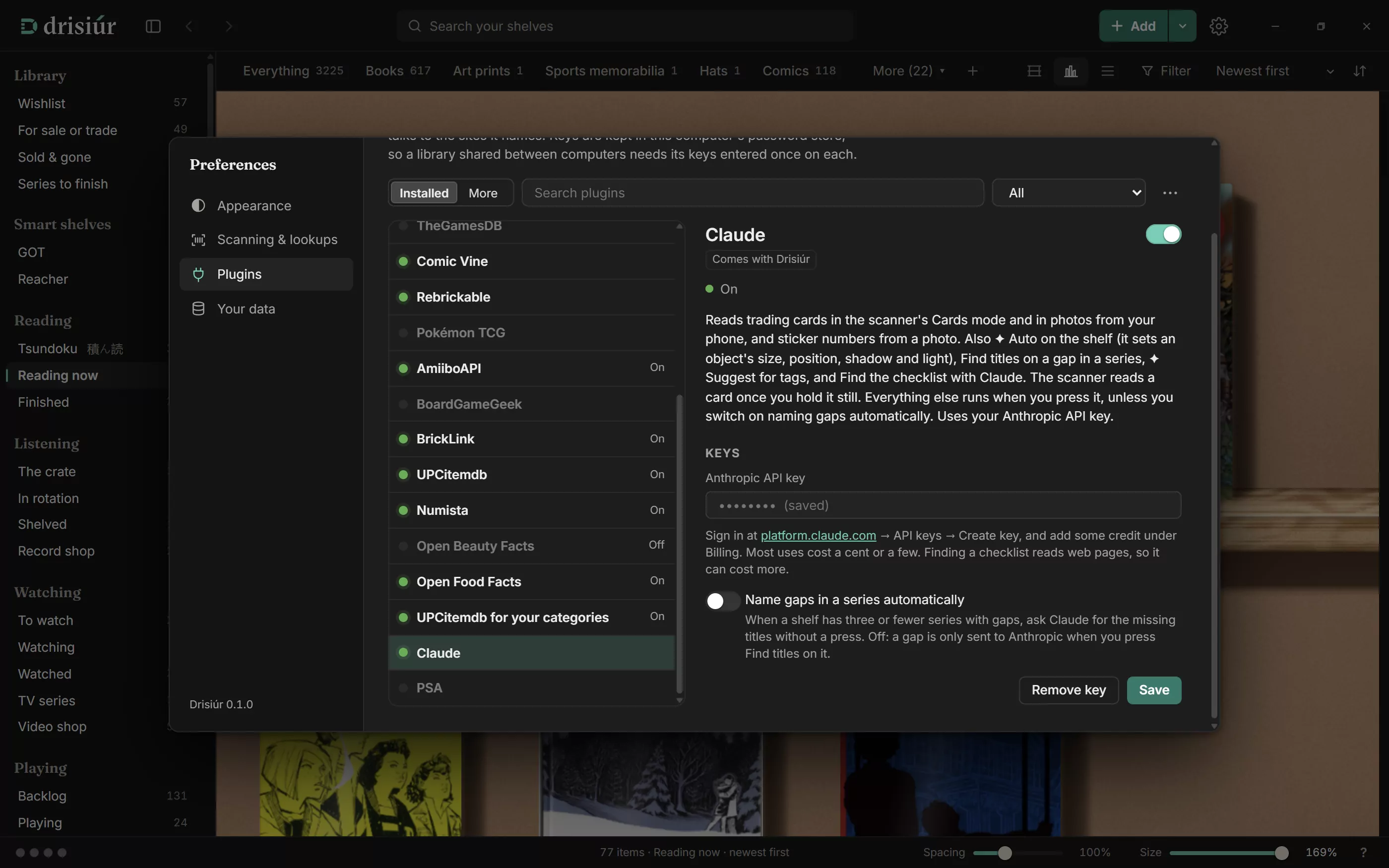
- reads trading cards in the scanner’s Cards mode. Only the picture inside the frame is sent;
- reads sticker numbers from a photo of a packet;
- ✦ Auto on the shelf: it looks at a small picture of the object, its title, its size and its neighbours, and sets its size, position, shadow and light;
- Find titles on a gap in a series, with web search. Titles it finds are remembered, and a number it couldn’t name isn’t asked about again for 30 days;
- ✦ Suggest for tags;
- Find the checklist with Claude, for a card range of your own.
The scanner reads a card once you hold it still. Everything else runs when you press it, except one switch: open Claude on the Plugins page and turn on Name gaps in a series automatically, under its key, to have gaps named on shelves with three or fewer series with gaps. It’s off to start with.
Most uses cost a cent or a few on your Anthropic account. Finding a checklist reads web pages, so it can cost more.
PSA
Also out of the order: PSA looks up a graded card’s cert number for its grade and population, when you press Look up the cert on PSA in the card’s Grading group. It needs a token, free with a PSA account from psacard.com/publicapi, entered on the Plugins page. PSA limits how many certs a token can look up each day.
Card set lists
The Sets pages read the open set lists for each game from TCGdex, Scryfall, YGOPRODeck, Lorcast, OPTCG API and digimoncard.io. These aren’t on the Plugins page and don’t need keys.
Ready to add
These come with Drisiúr, ready to install, on the More tab of the Plugins page. ISBNdb adds to Books and Comics. The rest answer categories you make from a template; if you haven’t made the category yet, the page says so.
- ISBNdbA large catalogue of books by ISBN, with format, pages, publisher and a cover. Good for editions the free services miss.Books, Comics · paid API key · api2.isbndb.com
- NumistaThe coin and banknote catalogue: the issuer, years and a photo of each side.Coins, Banknotes · free API key · api.numista.com
- UPCitemdb for your categoriesProduct barcodes and photos: a scan finds the name, brand, model and picture.Sneakers, Hats, Perfume, Watches, Die-cast cars, Dolls, Vintage toys, Model trains · no key, about 100 a day · api.upcitemdb.com
- Open Food FactsAn open database of anything sold with a barcode that you eat or drink: wine, spirits and beer included.Bottles, Wine · no key · world.openfoodfacts.org
- Open Beauty FactsThe same open database for perfume and cosmetics: name, house and a photo by barcode.Perfume · no key · world.openbeautyfacts.org
When you make a category that one of these can answer, Drisiúr tells you, with a button that opens the Plugins page.
Installing and managing
Everything happens in Preferences → Plugins. The page has two tabs: Installed, for the services that came with Drisiúr and the plugins you’ve added, and More, for the plugins ready to add. Search plugins and the Show list narrow it down: All, Switched on, Switched off, Needs a key, Came with Drisiúr or Added by you.
Pick a plugin to see it in the pane beside the list: what it does, which categories it looks up, which sites it talks to, whether it’s on, and where it is in the order, such as On · asked 3rd of 14. Its switch, its arrows and its keys are all there.
- Install a ready-made plugin: on the More tab, press Install.
- Add a plugin file: open the gear menu (More plugin options) and choose Add a plugin from a file…. Before anything is added, Drisiúr tells you which categories it looks up, which sites it talks to, and whether it needs a key. Press Add plugin to go ahead.
- Give it its key: type the key under Keys and press Save key. Until then it says Needs its key and isn’t asked.
- Switch it off: use its switch. Built-in services switch off the same way. The gear menu can also Switch off all added plugins, or switch them all on again.
- Choose the order: press ↑ (Ask this one sooner) or ↓ (Ask this one later).
- Update it: add the new file the same way. It replaces the old one, and its key is kept unless the new version talks to different sites.
- Remove it: press Remove plugin. Its key and its switch go with it.
Where they’re kept
Plugin files live in the plugins folder beside your library, by default %APPDATA%\com.shelfware.app\plugins. A library in a shared folder carries its plugins with it, and a backup includes them.
Keys are kept in the computer’s password store when one can be used, not in any file. A library in a shared folder therefore needs its keys entered once on each computer. Where no password store is available, keys are kept in the settings files beside the library.
What a plugin can’t do
A plugin is a description, not a program. It says where to ask and where the answer’s fields are, and Drisiúr does the asking. So a plugin:
- can’t run code;
- only talks to the addresses written in it, and only over
https://; - can’t reach your own network: addresses on
localhost,.localnames and bare IP addresses are refused; - only gets the keys you give it, and loses them if an update points it at different sites;
- can’t pose as another plugin or a built-in service: its file must be named for its id, each id is used once, and the built-in services’ ids are taken.
Write a plugin
If a website has a JSON API that can search by title or look up a barcode, you can teach Drisiúr to use it in one small file. Here’s the Numista plugin that comes with Drisiúr, piece by piece.
{
  "id": "numista",
  "name": "Numista",
  "homepage": "https://en.numista.com/",
  "description": "The coin and banknote catalogue: the issuer, years and a photo of each side.",
  "categories": ["c-coins", "c-banknotes"],
  "keys": [
    { "name": "api", "label": "API key",
      "help": "Free. Sign in to Numista, then ask for a key on its API page.",
      "url": "https://en.numista.com/api/" }
  ],
  "headers": { "Numista-API-Key": "{key.api}" },
  "search": {
    "url": "https://api.numista.com/v3/types?q={title}&lang=en&count=10",
    "results": "types",
    "fields": {
      "title": "title",
      "creators": "issuer.name",
      "year": "min_year",
      "cover_url": "obverse_thumbnail",
      "format": "category",
      "extra.country": "issuer.name"
    }
  }
}- Say who it is.
idis how Drisiúr knows it, and the file is saved asnumista.json.nameanddescriptionare what you see on the Plugins page. - Say what it answers.
categorieslists category ids. Coins and Banknotes are categories of your own, so their ids start withc-. - Ask for the key it needs.Each entry in
keysbecomes a box on the Plugins page, with your help text and a Get a key link.{key.api}is replaced with whatever the user typed. - Say where to ask.
search.urlis fetched with{title}filled in. Numista wants its key in a header, so it goes inheaders; other APIs take it in the address instead. - Say where the answers are.Numista sends
{"count": 2, "types": [ … ]}, soresultsistypes. Drisiúr picks the result that best matches what you typed: the whole title, or the title before its subtitle, counts most. If you gave an author, a result by someone else doesn’t count, and extra words count against a result. - Map the fields.Each entry in
fieldsis a path into one result.issuer.namereads thenameinsideissuer. A field startingextra.fills a detail of its own: here, Country.
Save it as numista.json, then add it from Preferences → Plugins: the gear menu, then Add a plugin from a file…. To share a plugin, send someone the file.
Start from the API’s own answer. Open the search address in a browser with a real title in place of {title} and your key in place of {key.api}, and read the JSON. Every path in fields is a path through that answer.
Barcode lookups
Add a barcode request beside search and Drisiúr tries it first whenever there’s a barcode, falling back to the search. Many barcode APIs answer every request, found or not; require names a path that only has a value when something was found. From Open Food Facts:
"barcode": {
  "url": "https://world.openfoodfacts.org/api/v2/product/{barcode}.json",
  "require": "product.product_name",
  "fields": {
    "title": "product.product_name_en|product.product_name",
    "creators": "product.brands",
    "cover_url": "product.image_front_url",
    "identifier": "product.code"
  }
}
There’s no results here, because this API sends a single product, not a list. product_name_en|product_name means “the English name, or the name if there isn’t one”.
File reference
The plugin
| Field | Needed | What it is |
|---|---|---|
id | Yes | Letters, digits, - and _. The file must be named <id>.json. Can’t be a built-in service’s id, such as discogs. |
name | Yes | Shown on the Plugins page. |
description | No | One or two sentences under the name. |
homepage | No | The service’s own site. |
version | No | A whole number for your own use. Defaults to 1. |
categories | In practice | The category ids it answers. A plugin with none installs but is never asked. |
keys | No | Keys it needs: name (used as {key.name}), label, and optional help and url (an https:// page where you get one). It isn’t asked until every key is filled in. |
headers | No | Sent with every request. {key.name} is filled in. |
search | At least one | A request that finds things by title. |
barcode | A request that looks a barcode up. Tried first when there’s a barcode. |
A request
| Field | Needed | What it is |
|---|---|---|
url | Yes | Starts with https:// and names a site on the internet. {title}, {creator}, {barcode} and {key.name} are filled in, encoded for an address. |
results | No | The path to the list of results. Leave it out when the whole answer is the one result. |
require | No | A path that must have a value for the answer to count as found. |
fields | Yes | Which part of a result fills each field. title is required. |
Fields
| Field | Fills |
|---|---|
title | The title. Required. |
creators | Author, artist, maker or brand. A comma-separated value becomes several. |
year | The first four digits found, so "1909-01-01" gives 1909. |
publisher, format, platform, series | Text, as found. |
series_index, page_count | A number. |
minutes | A running time. Only the digits are kept, so "95 min" gives 95. |
identifier | The barcode or catalogue number. |
cover_url | The picture. Only kept if it starts with http. |
extra.<name> | A detail of your own, such as extra.country or extra.scale. |
Paths
| Write | Means |
|---|---|
title | The title of the result. |
issuer.name | The name inside issuer. |
images[0] | The first item of the images list. |
name_en|name | The first of these that has a value. |
=Coin | The fixed text “Coin”, whatever the answer says. |
Whatever a path lands on is turned into text: numbers and true or false as written, a list as its entries joined with commas (a list of objects by each one’s name), and an object by its name or title. An empty value counts as missing, so the next alternative after | is tried.
Category ids
A plugin answers the built-in kinds by these ids:
book music movie game boardgame camera comic lego gundam bottle hardware figure tool card other
A category you make yourself has the id c- followed by its name in lower case, accents dropped and anything else turned into hyphens. Coins is c-coins and Die-cast cars is c-die-cast-cars. Make a second category with the same name and it becomes c-coins-2. The templates make:
c-sealed-product c-coins c-banknotes c-stamps c-watches c-wine c-perfume c-die-cast-cars c-sneakers c-dolls c-minerals c-postcards c-model-trains c-art-prints c-sports-memorabilia c-vintage-toys c-militaria
Your own categories, and the built-in kinds
- A category of your own is looked up by its plugins alone. They’re asked in name order until one finds something: by barcode first if there is one, then by title. Refresh from the web on an item only fills what’s empty, never what you’ve typed.
- A built-in kind already has services. A plugin for it joins the list after them, unless you move it up. It’s asked in its turn for scanned barcodes and ISBNs, when Drisiúr searches by title, for the From title… list of editions, when a record comes back without a cover or year, and for the cover chooser.
Troubleshooting
When it won’t install
Drisiúr checks a plugin before adding it, and tells you why it can’t be used:
| Drisiúr says | Fix |
|---|---|
| That file isn’t a Drisiúr plugin (it isn’t JSON). | Check the file in a JSON validator. A trailing comma is the usual culprit. |
| its id must be letters, digits, - or _ | No spaces, dots or slashes in id. |
| it has no name | Add name. |
| it doesn’t say how to look anything up | Add a search or a barcode request. |
| its addresses must start with https:// | Use the API’s https:// address. |
| it can only talk to sites on the internet, by name | Use the site’s name, not an IP address or a local address. |
| it doesn’t say where the title is | Every request needs fields.title. |
| “…” is the name of a service built into Drisiúr | Pick another id. |
When it installs but finds nothing
- Its row says Needs its key. Add the key and press Save key.
- It says it looks up a category “(make this category to use it)”. The id in
categoriesdoesn’t match a category you have. Make the category, or fix the id. - “… returned 401” or “403”. The service turned the key down. Check it, and check where the API wants it: header or address.
- “… sent something that isn’t JSON”. The address leads to a web page, not the API. Check it in a browser.
- Nothing, and no error. The service answered “not found” (a 404),
requirehad no value,resultsdidn’t lead to a list, or no result had a title at thetitlepath. Compare each path with the real answer.