Cards have a section of their own in the sidebar, between Playing and Board games: Sets, Trade list, Decks, Grading and Sealed product. It appears once you have cards or sealed product.
Reading cards
Choose Scan with the webcam from the arrow beside Add, and switch to Cards. A card-shaped frame appears.
- Hold one card up in the frame.Close enough to fill it, and keep it still.
- Wait for green.When the card is still, sharp and well lit, the frame turns green and the card is read by itself. Read now, Space or Enter reads it straight away.
- It’s filed.Drisiúr says which set it went into, and that it’s ticked off there.
If it isn’t reading, Drisiúr says why: too dark, glare on the card, or too blurry. Tilt the card away from the light, or hold it a little further back so the camera can focus.
Reading cards uses Claude with your own Anthropic key. Only the picture inside the frame is sent. The photo kept with the card is cropped to the frame.
Where a card is filed
Drisiúr files each card it reads in the first place that fits:
- The set you opened the scanner from, if you pressed Read cards with the webcam on a set’s page.
- Its set in the open lists for Pokémon, Magic, Yu-Gi-Oh!, Lorcana, One Piece and Digimon.
- One of your checklists, matched by number, or by the player’s name, using the variant and team to choose between cards with the same name.
- Otherwise, just your Cards.
A card you already have, ungraded and in the same set, is counted as another copy. A card read as one product never goes into a checklist for another: an Adrenalyn XL card won’t land in your Match Attax checklist.
If a card isn’t filed, edit it and set its Series to the checklist’s name and its No. to the card’s number.
Sets and binders
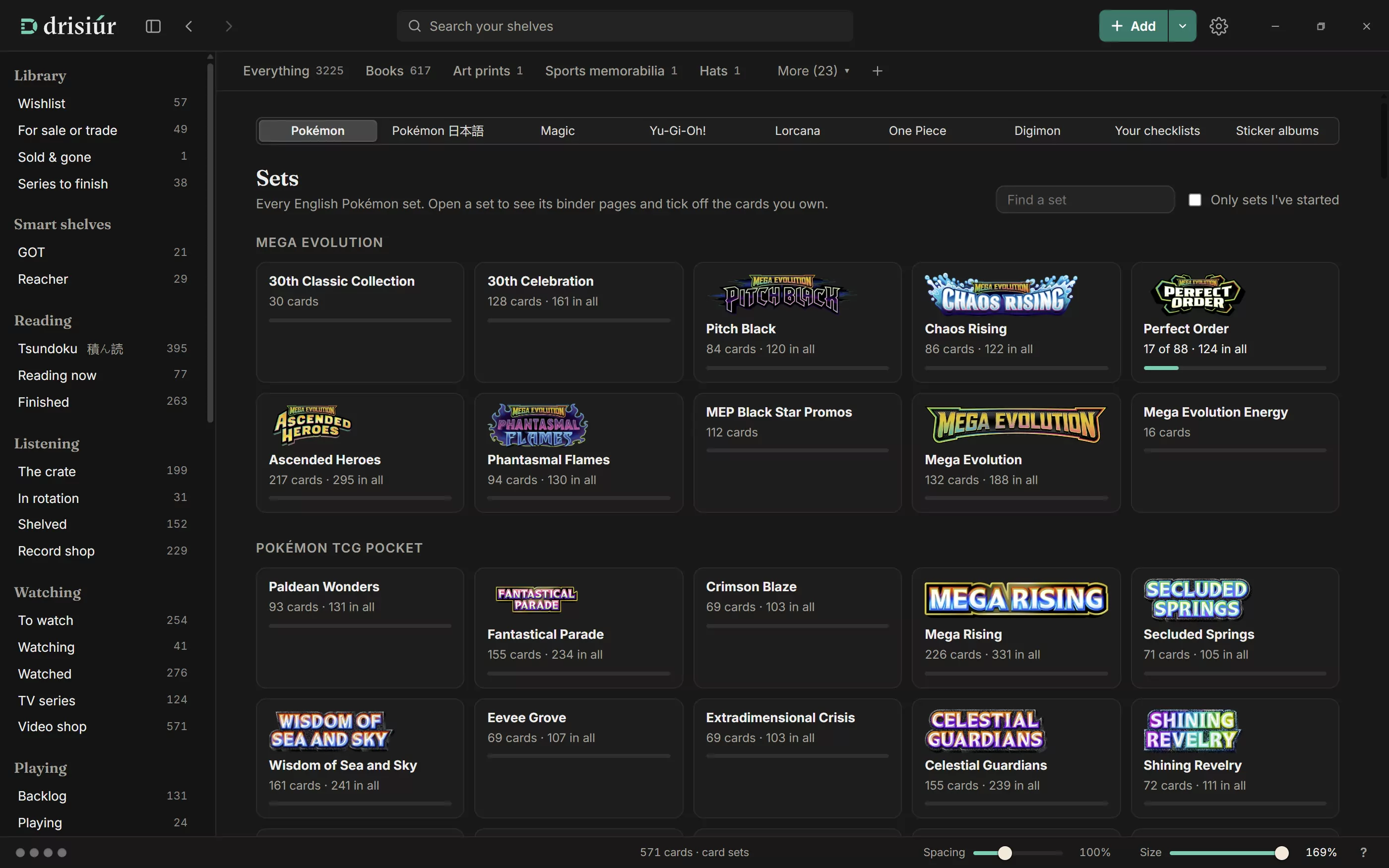
Sets has a tab for each game (Pokémon, Pokémon 日本語, Magic, Yu-Gi-Oh!, Lorcana, One Piece, Digimon), then Your checklists and Sticker albums. Find a set searches, Only sets I’ve started narrows the list, and each set shows how many you have, with a bar.
A set’s page shows its cards as binder pages, nine pockets to a page, with All, Missing and Have:
- Click a missing card to add it, and an owned card to see its details. Copies show as ×2, ×3 and so on.
- Right-click a card you own to take it out of the set, if it was filed there by mistake. It stays in your Cards, unfiled.
- Tick by number adds several at once: type numbers and ranges such as
1-50, 62, TG05and press Add to collection. More than thirty at a time asks first. - Add the missing to Wishlist, and Read cards with the webcam to fill this set from the camera.
- Drag a picture onto a pocket, or point at it and press Ctrl + V, to use your own photo of your copy.
Your checklists
For ranges without an open list, such as Panini Adrenalyn XL, Match Attax and Topps, make your own under Sets → Your checklists → + New checklist:
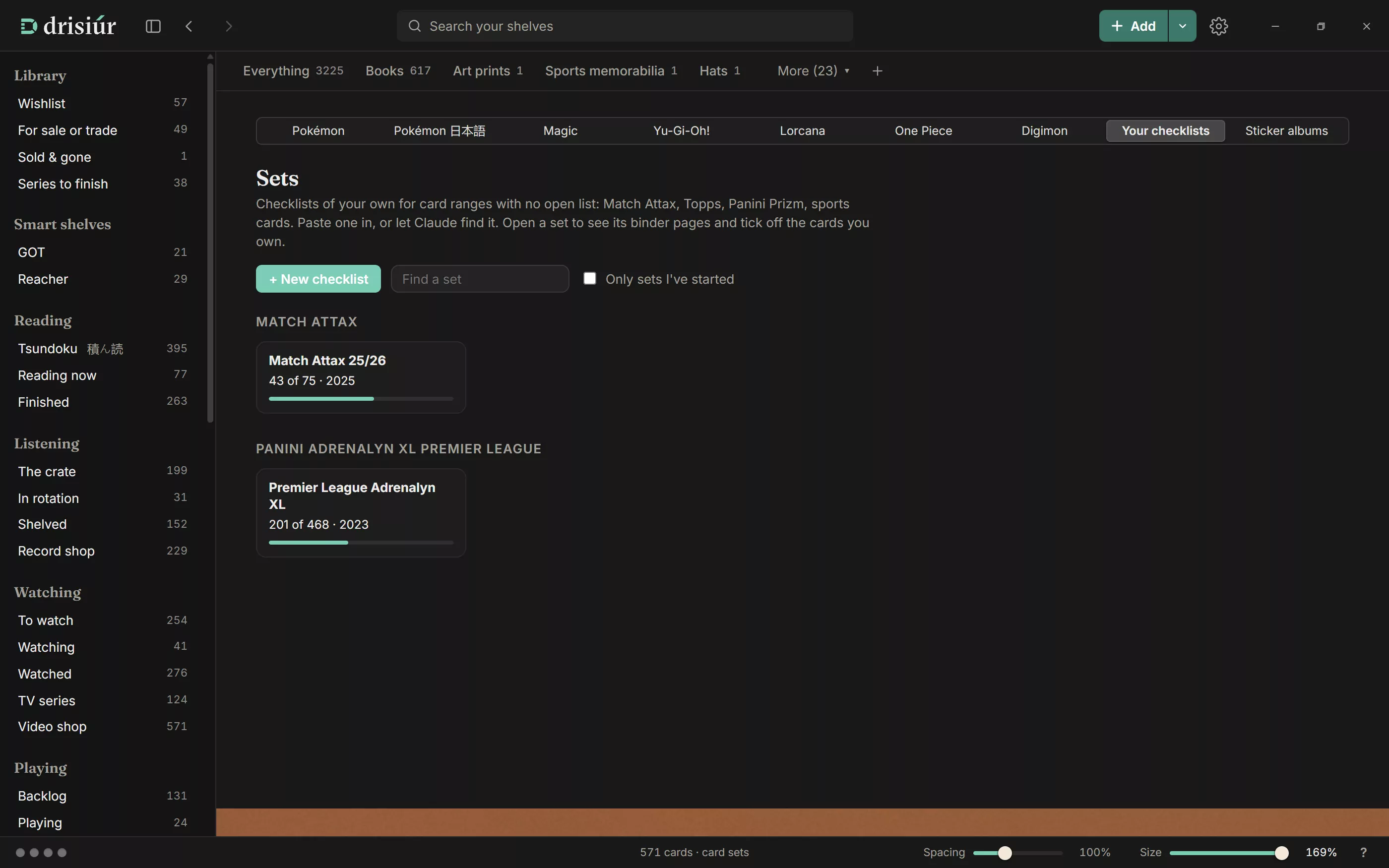
- Give it a Range, a Name and a Year.
- Type or paste the checklist, one card per line with its number first. A line ending in a colon starts a section.
- Or press Find the checklist with Claude to have it found on the web.
On the checklist’s page, File cards already in my collection files the matching cards you already have, and Change this checklist edits it.
Sticker albums
Sets → Sticker albums → + New album keeps a sticker album: number it 1 to N, or by team.
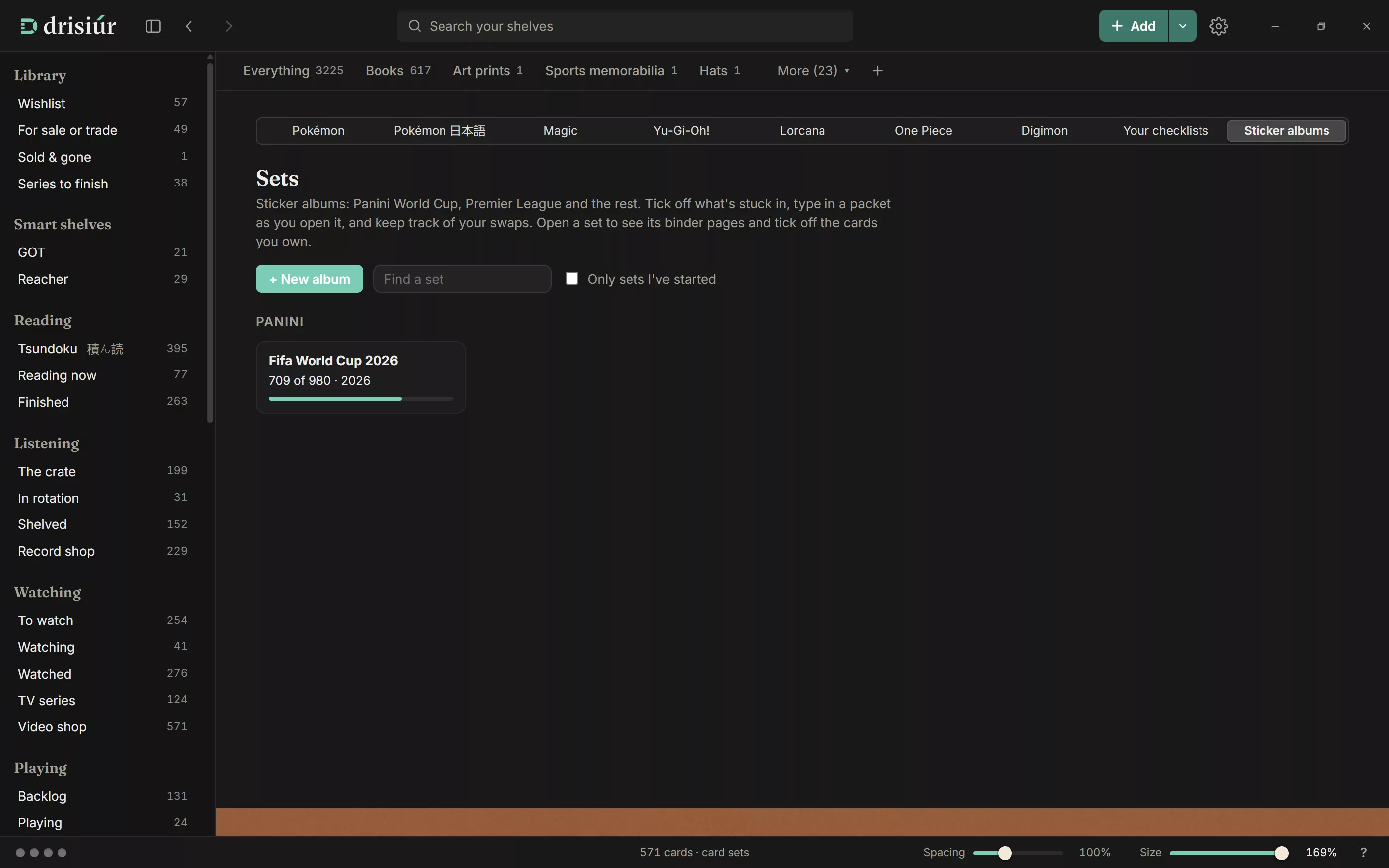
- Opened a packet? Type the numbers and press Add them, or use From a photo… and Claude reads them.
- Click a sticker to add one. Right-click, or Shift + click, takes one away.
- To give a sticker its picture, drag one onto its place in the album, or paste it there. It shows faded until you’ve got that sticker.
- All, Need and Swaps show what you have, what you’re missing and your doubles. Copy my needs and Copy my swaps make lists to send, and Swap with a friend helps you trade.
- Put the album on my shelves stands it with the rest of your collection.
Decks
Decks → + New deck: give it a name and a game, then Paste the list from Moxfield, Arena, Limitless or similar, and press Use this list. Drisiúr shows, for each card, how many the deck needs, how many you have, how many are in other decks, and how many you’re short.
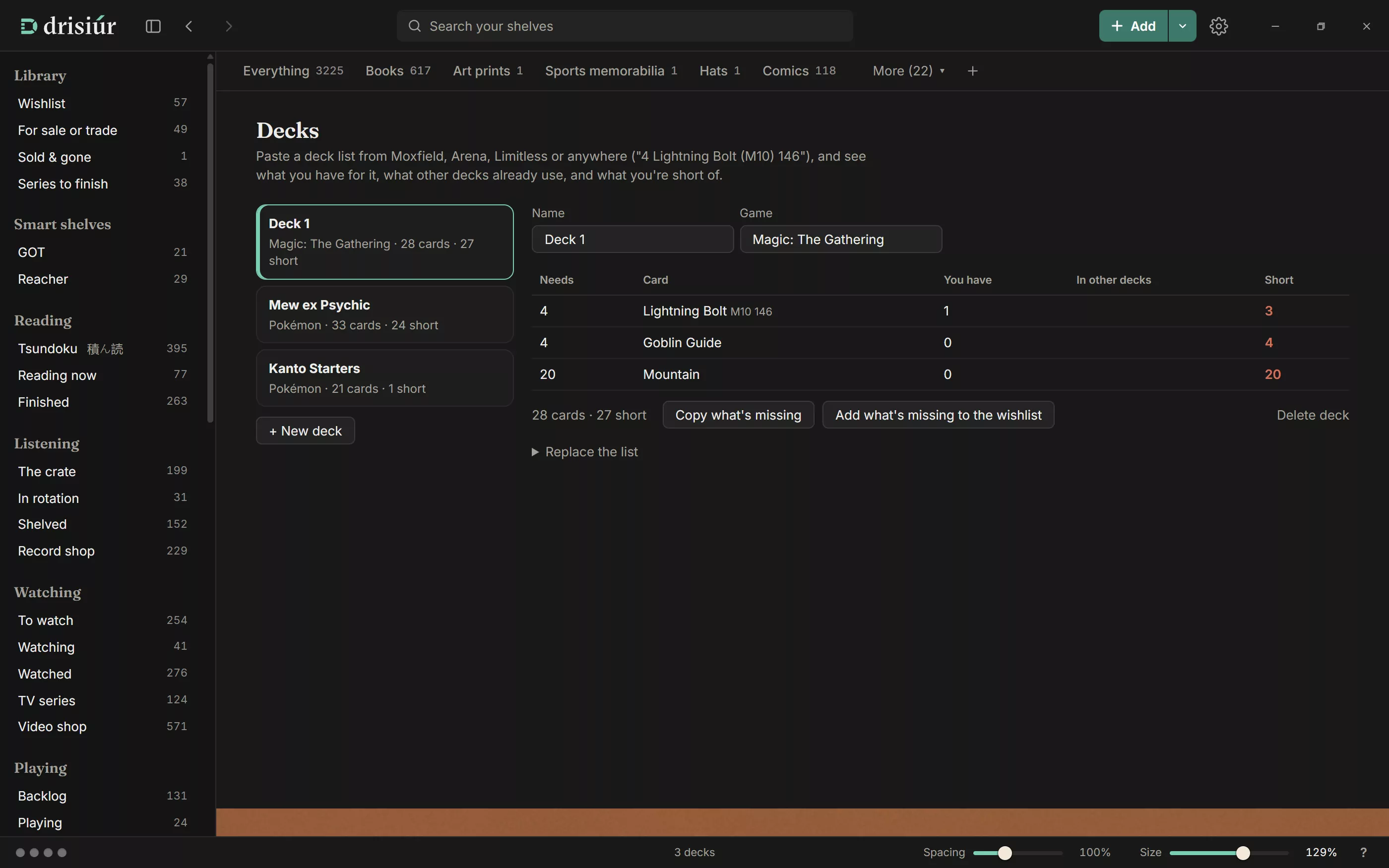
Copy what’s missing makes a list to buy from, and Add what’s missing to the wishlist puts them there.
Grading
Grading → + New submission keeps track of cards sent to PSA, BGS, SGC, CGC or TAG: the service, when they went, the declared value, and fees and postage.
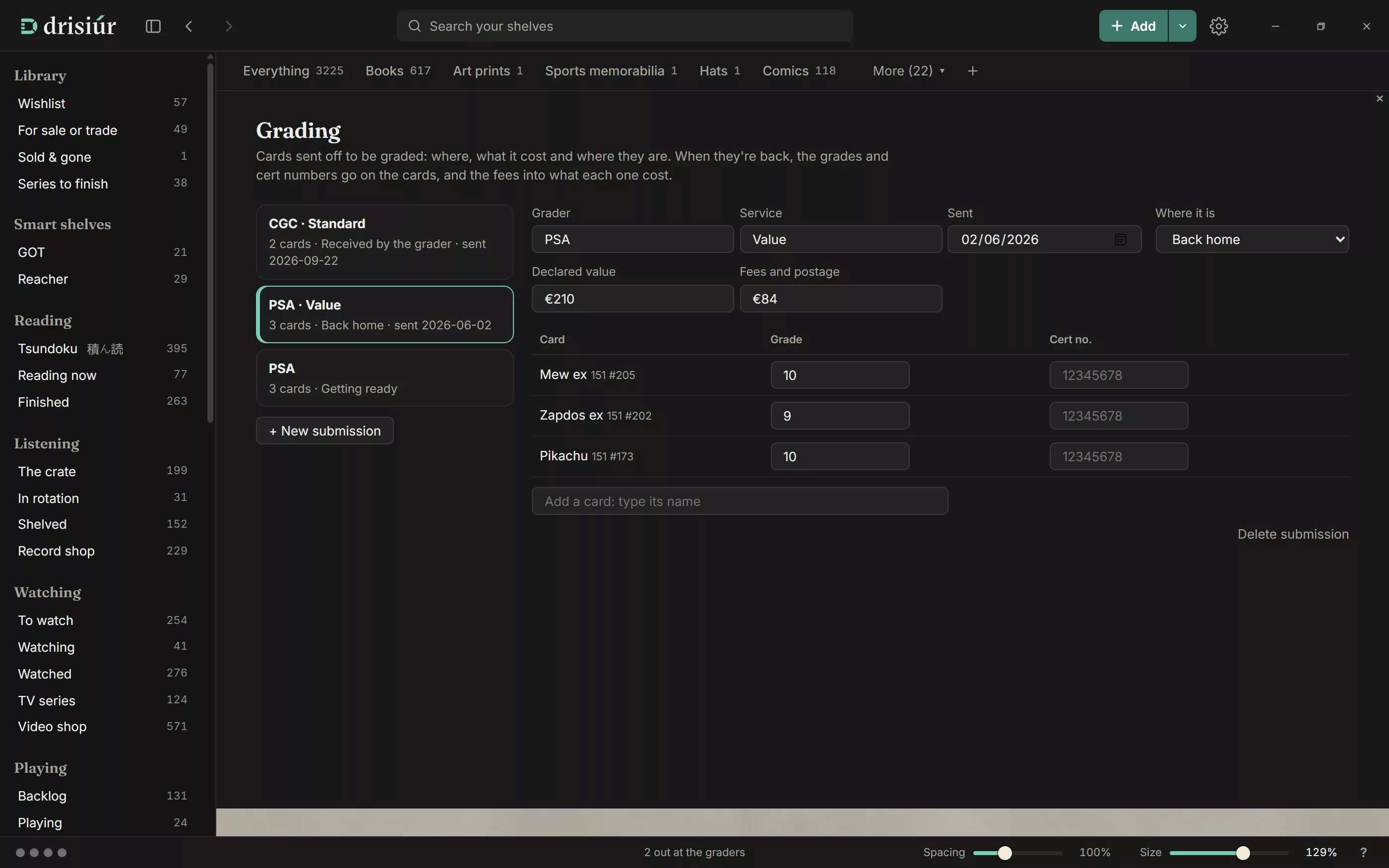
- Move it along as it goes: Getting ready, Sent, Received by the grader, Graded, Back home. The sidebar counts submissions that aren’t home yet.
- Add cards by typing their names. Once graded, give each one its grade and cert number.
- Put the grades on the cards copies the grades onto your cards and shares the fees out into what each card cost.
Sealed product
Booster boxes, tins and hobby boxes have a shelf of their own. Press + Sealed product in the sidebar the first time and Drisiúr makes it from its template: boxes on the shelf, with Product, Game or sport, Set, Packs inside and State, and the statuses Sealed, Opened and Ripped. Add them with Add.
Trade list and copying lists
Trade list shows everything for sale or trade, including copies marked For trade on cards you’re keeping. On the Trade list and the Wishlist, Copy list copies them as lines like 4 Lightning Bolt (M10) 146 [NM], ready to paste into a trade or a shop; the Wishlist adds what you’d pay.
A card’s details
- Grade: a number or a condition, such as 9.5 or Near mint. The Grading group adds the grader, qualifier, label, subgrades and population, and keeps them together as one line, such as “PSA 8 OC”. Look up the cert on PSA fills them in from a cert number, with a PSA token.
- Copies: + Add copies keeps a line for each lot, with quantity, condition (NM, LP, MP, HP or DMG, or Cardmarket’s MT, EX, GD, PL and PO), finish, language, where they are, what you paid, and how many are for trade.
- Card, Sports and Where it’s kept groups: language, set code, rarity and finish; numbered to, rookie card, autograph and memorabilia; binder or box, page and pocket.
- Market: today’s Cardmarket and TCGplayer prices where there are any, with a button to use one as Worth now. Refresh from the web always updates them.
- In decks: which of your decks use it.
On the shelf, a graded card stands in its slab, and an ungraded one in a toploader or raw on a stand. Cards show their grade, and flags for rookie cards, autographs, relics and numbered cards.