Add at the top right of the window adds something by hand. The arrow beside it has the other ways in: Type a barcode, Scan with the webcam, Add by hand, Import a library and Find gear in my photos. Importing a whole library has a page of its own.
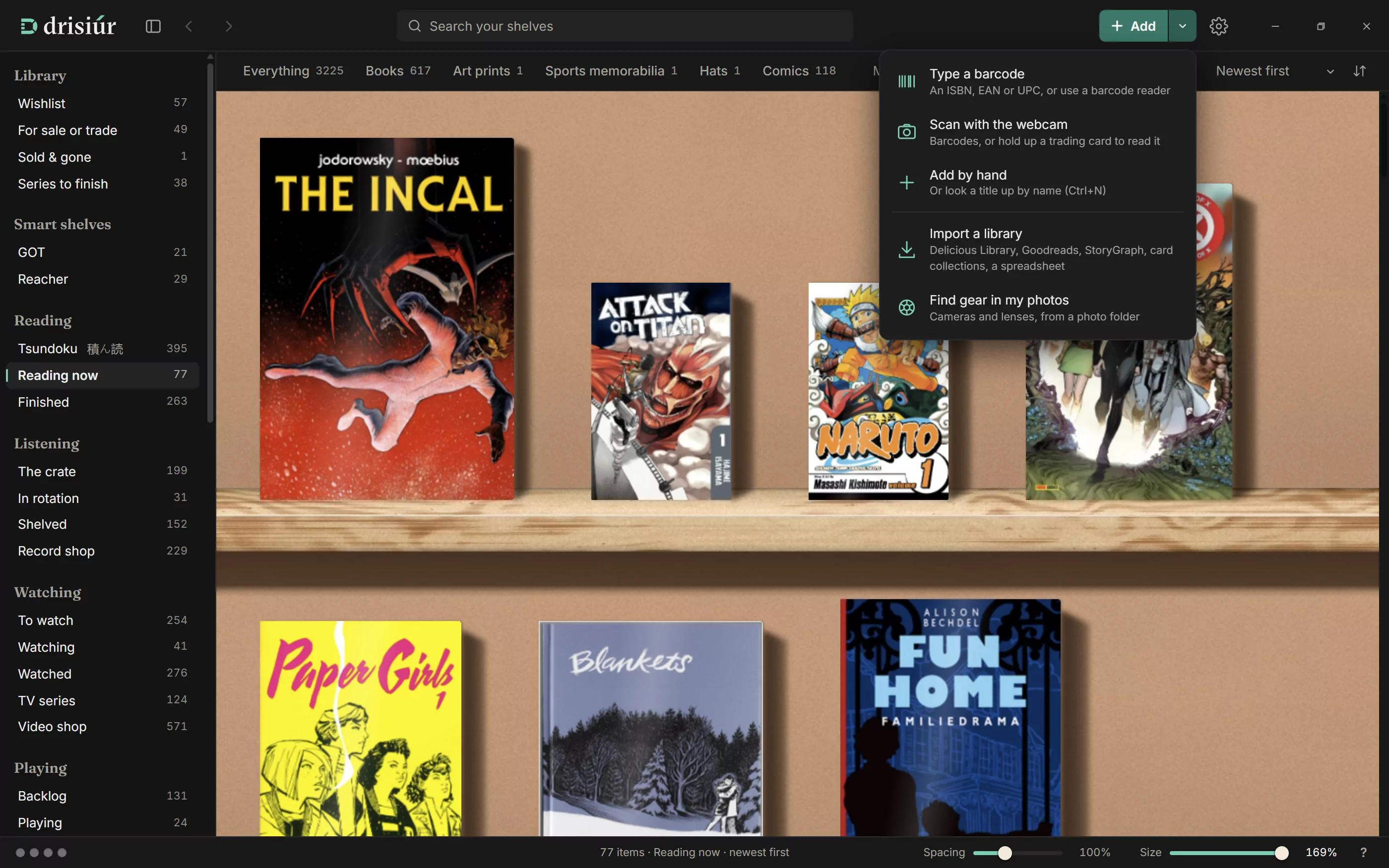
A barcode or ISBN
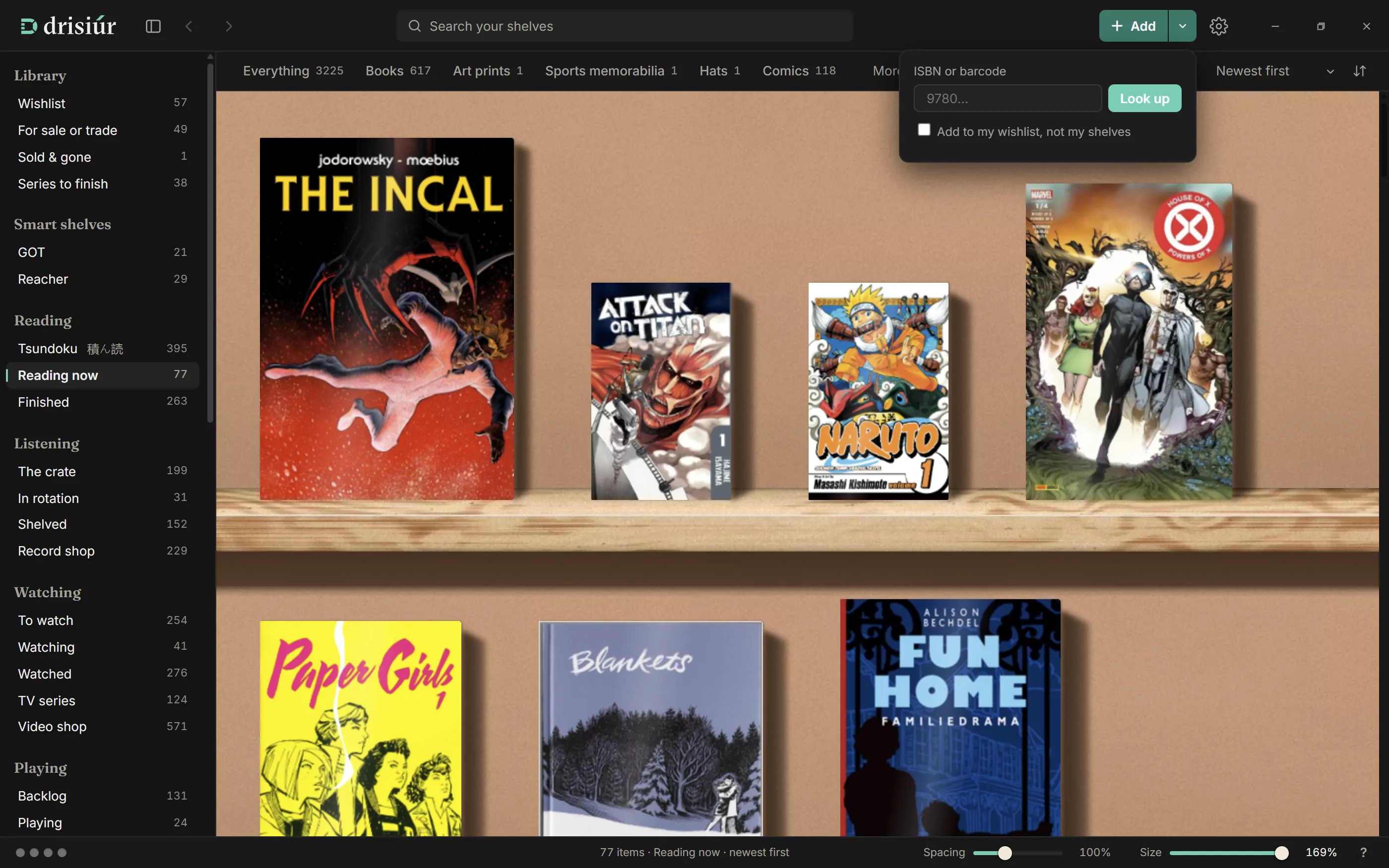
Choose Type a barcode, type or paste it into ISBN or barcode, and press Look up. A USB barcode reader types into the same box. Drisiúr asks the lookup services in turn and puts what it finds on the shelf, in the right category.
If none of the services know it, Drisiúr says so and suggests pasting the details from a shop’s page, or From title….
Scanning with the webcam
Scan with the webcam opens Scan barcodes, or read a card. In Barcodes mode, hold each barcode up to the camera; Drisiúr beeps and adds it, and the window stays open so you can work through a pile. For trading cards, switch to Cards: see Reading cards.
- It reads EAN-13 (ISBNs included), EAN-8, UPC-A, UPC-E and Code 128.
- The same barcode held up twice within four seconds is only read once.
- Pick a different camera from Camera: auto if you have more than one. Try again restarts it.
- Mirror shows the picture like a mirror, which makes it easier to line things up. Only the picture on screen is flipped. It’s on to start with, unless the camera faces away from you, and your choice is remembered.
- To check each scan before it’s added, turn on Preferences → Scanning & lookups → Ask before adding each item.
Most films, games and board games are found from their barcode by UPCitemdb, which allows 100 lookups a day. A big scanning session can use that up; anything it misses can be filled in the next day with Fill in what’s missing.
By title, or by hand
Add, or Ctrl + N, opens the editor, set to the category or list you’re looking at. From the Wishlist, it’s already marked as wanted.
- Type a title and press Look up beside it to fill in the details from the web.
- Press From title… beside the barcode to see the editions of that title with their barcodes, and pick the one you own. Editions in your languages come first, and the rest are under Other languages.
- Or just fill the fields in yourself and press Save. Nothing needs to be online.
For a category of your own, Look up asks the plugins that answer it. Without one, Drisiúr says so and points you at Plugins.
Pasting details
For something no service knows, copy the product details from a shop’s page and press Paste details in the editor, beside From title…. Drisiúr picks out the publisher, date, pages, size and weight. Pasting a block of text into any field does the same.
Wishlist and duplicates
- Tick Add to my wishlist, not my shelves before looking something up, and it goes on your wishlist instead.
- Scan something you already have and Drisiúr tells you, with Add another copy if you meant to. Scan something on your wishlist and you get Got it ✓, which moves it onto your shelves.
- If you own another edition of the same thing, Drisiúr says so and offers Show it.
Gear from your photos
Find gear in my photos, under the arrow beside Add, looks through a folder of photos, subfolders included, and lists the cameras and lenses that took them, matched against the Lensfun database. Press Add to the shelf for the ones you own.
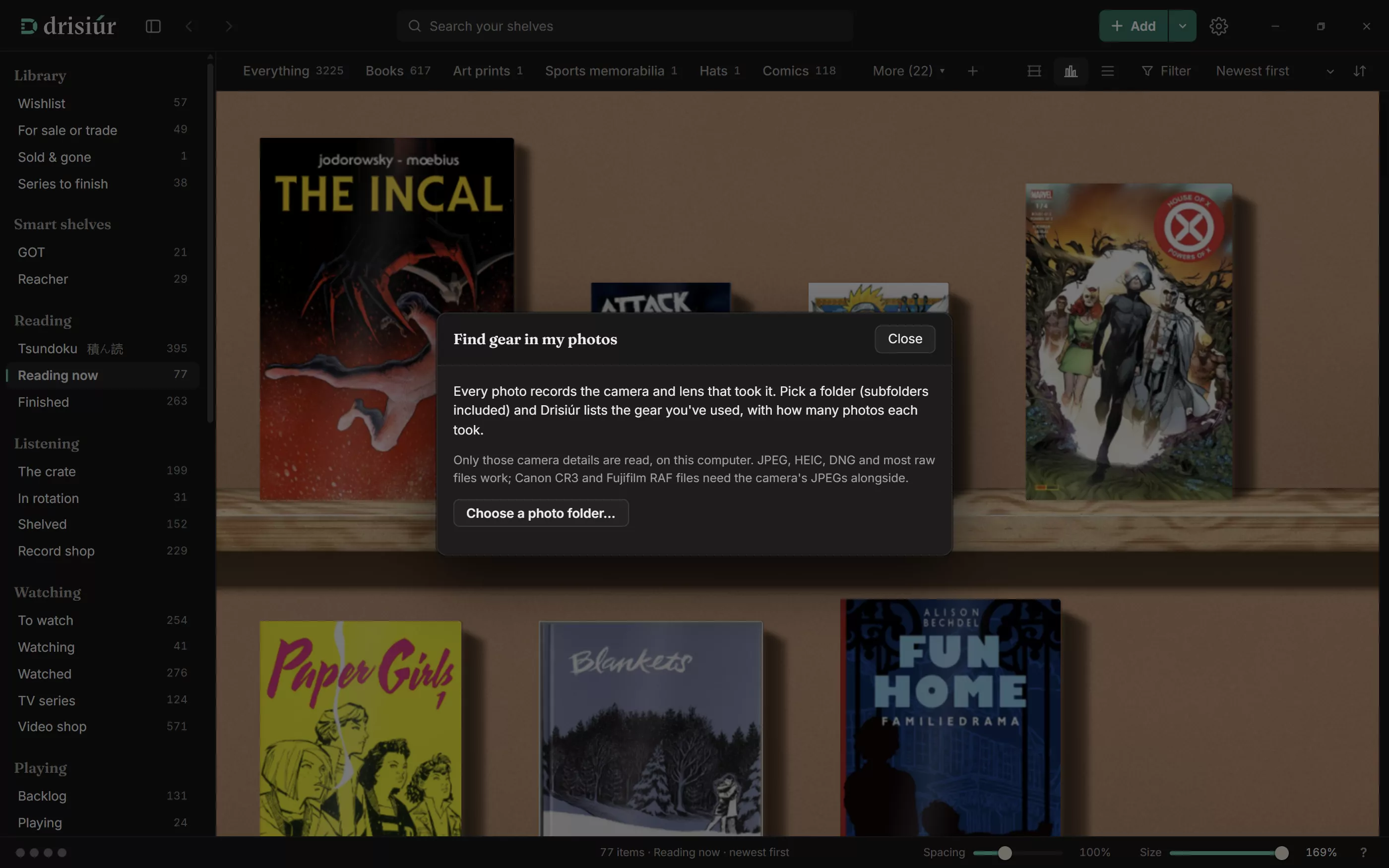
It reads only the camera and lens details stored inside each file. It never opens the pictures themselves and never sends them anywhere. It reads JPEG, HEIC, TIFF, DNG and most raw files; for Canon CR3 and Fujifilm RAF, keep the JPEGs alongside.
Changing many at once
Pick items with Ctrl + click, a run with Shift + click, or everything with Ctrl + A. A bar appears with:
Add a tag · Take off a tag · Where they live · Condition · Status · Ownership · Category · Series · Format · Take off the shelves
Choose one, set it, and press Apply. Series can also Number them 1, 2, 3… in shelf order. All picks everything; Done or Esc lets go.