Where it lives
Your library is in the app’s data folder: %APPDATA%\com.shelfware.app\ on Windows (paste it into the File Explorer address bar), and ~/Library/Application Support/com.shelfware.app/ on macOS.
| In the folder | Holds |
|---|---|
library.sqlite | Every item, loan and detail. One SQLite file, which any SQLite tool can open. |
covers\ | The artwork, downloaded and kept so it works offline |
settings.json | Lookup service settings |
categories.json | Your own categories |
plugins\, plugin-state.json | Plugins you’ve added, and which are on, in what order |
series-titles.json | Names Claude found for gaps in a series |
ui-state.json | Your preferences, sidebar, sizes, filters, smart shelves and bookcase designs |
checklists.json, decks.json, grading.json | Your card checklists and sticker albums, decks, and grading submissions |
exports\, backups\ | What you’ve exported and backed up |
How Drisiúr is set up for you is kept beside the library too, in ui-state.json: your preferences, the sidebar’s order and folds, sizes, shelf lights, filters, smart shelves and bookcase designs. So a backup carries it, and a library moved to another computer looks the same there.
Backing up
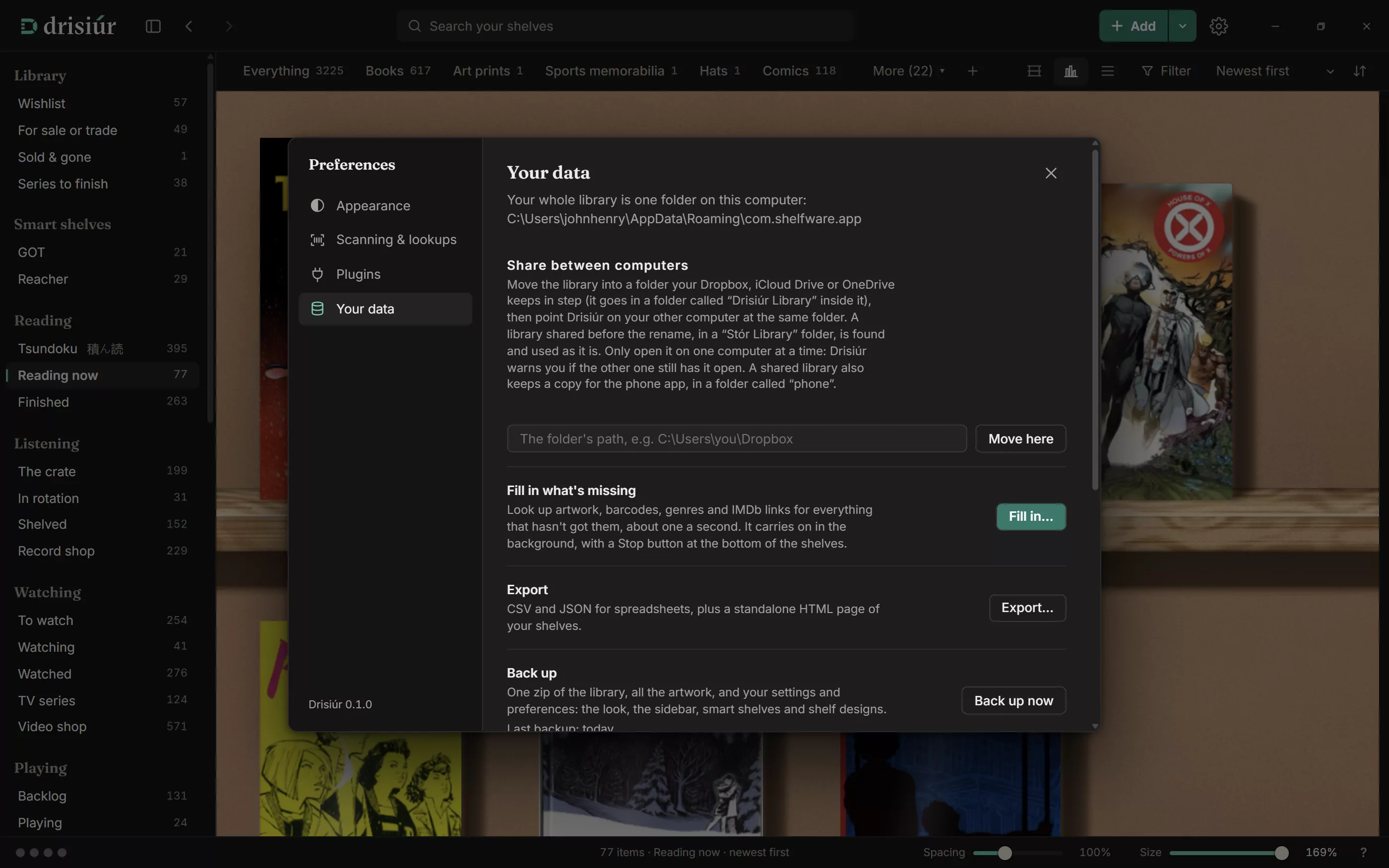
Preferences → Your data → Back up now writes a zip to the backups folder, named like shelfware-backup-2026-10-18-0930.zip. It holds the library, your settings and preferences, your categories, plugins, card checklists, decks and grading, the names Claude found for gaps in a series, and every cover. A bar shows how far it’s got, and a backup that fails leaves no half-made zip behind.
A backup never holds your keys: they stay in your computer’s password store. Copy the zip somewhere else, such as a USB drive or a cloud folder, for it to be a real backup.
Your data shows when you last backed up. Each backup in the list shows its size and has a Delete button, which sends it to the Recycle Bin (the Bin on a Mac). Stats & reports → Storage can also keep only the newest three.
Restoring a backup
Preferences → Your data → Restore from a backup lists your most recent backups, each with a Restore button. For a backup kept somewhere else, press Restore from a backup… and pick the zip.
- Drisiúr checks the backup.It must be a Drisiúr backup, and Drisiúr tells you when it was made and how many items and pictures it holds.
- You confirm.Press Restore and restart. The backup replaces your whole library as it is now.
- Drisiúr restarts and puts it in place.The library it replaces is kept in
backups\before-restore-<date>\first, so nothing is lost. If any step fails, everything is put back as it was.
- A shared library changes for every computer that uses it. Close Drisiúr on any other computer first. While another computer has the library open, Drisiúr won’t restore, and says which computer to close it on.
- Keys aren’t in backups. After restoring on a different computer, enter them again in Preferences → Plugins.
- A backup made before series titles were included still restores, and keeps the series titles you have now.
Changed your mind? Preferences → Your data offers Go back to this library, which returns you to the library you had before the restore. Kept libraries you don’t need any more can be deleted from the same list.
Two computers
Preferences → Your data → Share between computers moves the library into a folder that Dropbox, iCloud Drive or OneDrive keeps in step. Type the full path of a folder that already exists and press Move here. Drisiúr makes a Drisiúr Library folder inside it, copies everything across (series titles included), leaves the originals where they were, and restarts.
On the other computer, point Drisiúr at the same folder. If there’s already a library there, Drisiúr asks before using it: Use that library.
- Open it on one computer at a time. Drisiúr notes which computer has the library open. If you start it while the other one still has it, you’re asked whether to Open it here anyway or Quit Drisiúr; if the other computer takes it over while you have it open, you’re told.
- If the shared folder can’t be reached, Drisiúr opens the copy on this computer and says so.
- Keys are per computer. Enter them once on each.
- Bring it back to this computer undoes the move.
Keys
Keys for lookup services and plugins are kept in your computer’s password store (Credential Manager on Windows, the Keychain on macOS), not in any file; the files only note that a key is there. If the password store can’t be used, keys are kept in settings.json instead, as plain text.
What goes over the network
Drisiúr has no account, no telemetry, no analytics and no update check. It goes online for:
- Lookups: when you scan, look up, refresh, fill in what’s missing, fetch artwork after an import, find artwork online or find a barcode from a title. Each goes to the services and plugins on your Plugins page.
- Covers: downloaded in the background after you add things, and shown from where they came from until they are.
- A web address you paste as a cover: Drisiúr fetches that page to find its picture.
- Card sets: the Sets page fetches the open set lists from TCGdex, Scryfall, YGOPRODeck, Lorcast, OPTCG API and digimoncard.io.
- PSA, with your own token, when you press Look up the cert on PSA.
- Claude, only with your own key, and only when you press something: ✦ Auto, Find titles, reading a card, ✦ Suggest for tags, Find the checklist with Claude, or reading stickers from a photo. Gaps in a series are named without a press only if you switch on Name gaps in a series automatically.
Links to Spotify, IMDb, Google Images and the rest open in your own browser.
If Drisiúr closes unexpectedly
The next time it starts, Drisiúr says so and offers the crash report: Copy report or Save as a file, to send to hello@drisiur.app if you like. Nothing is sent by itself.
The lookup cache
Answers from the lookup services are kept for seven days, and “not found” for one, so looking the same thing up twice doesn’t ask again. Preferences → Your data → Clear cache empties it.