Install
Drisiúr runs on Windows and macOS. Linux builds work too.
To scan barcodes you need a webcam. Any built-in laptop camera works. Reading trading cards with the webcam also needs a key for Claude.
The window
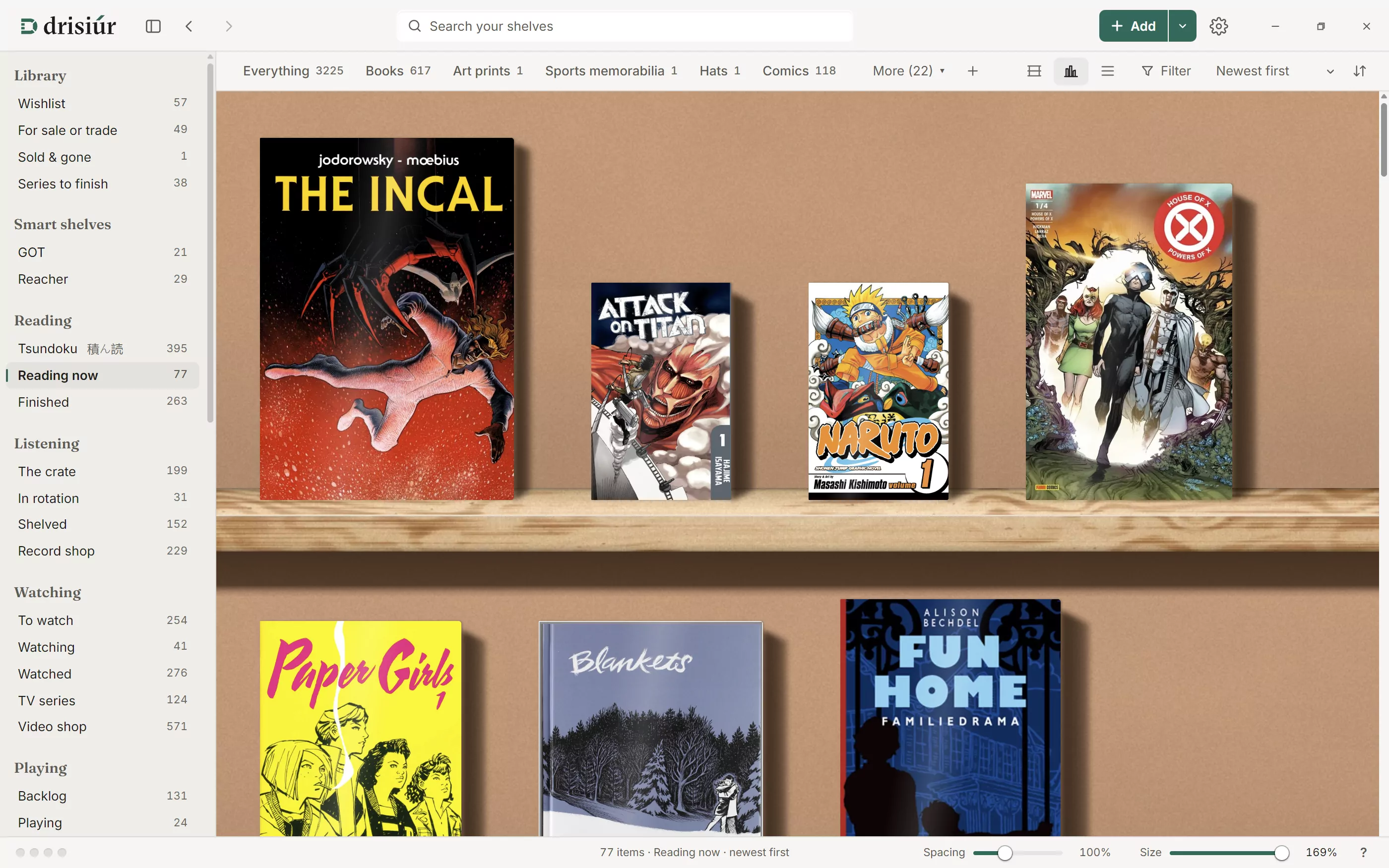
- Category chips along the top switch between kinds of shelf: Books, Music, Films and the rest. Drag a chip to move it. The ones that don’t fit go under More ▾, and the + makes a category of your own.
- At the top left, beside the sidebar button, the arrows go back and forward between the shelves you’ve looked at (Alt + ← and Alt + →).
- Top right is Add, for adding something by hand. The arrow beside it has the other ways in: Type a barcode, Scan with the webcam, Add by hand, Import a library and Find gear in my photos. See Adding things.
- The sidebar has your Library lists, smart shelves, the reading, listening, watching and playing lists, your cards, loans and, under Tools, Tags, Stats & reports and Recently removed. See Finding things. The panel button at the top left, or Ctrl + \, hides it.
- The footer has the dots that show how each lookup service is doing, the item count, the Spacing and Size sliders, and ? for About and the keyboard shortcuts. Click the percentage beside a slider to put it back to 100%.
Click any item to open its details. See Items and loans.
Preferences
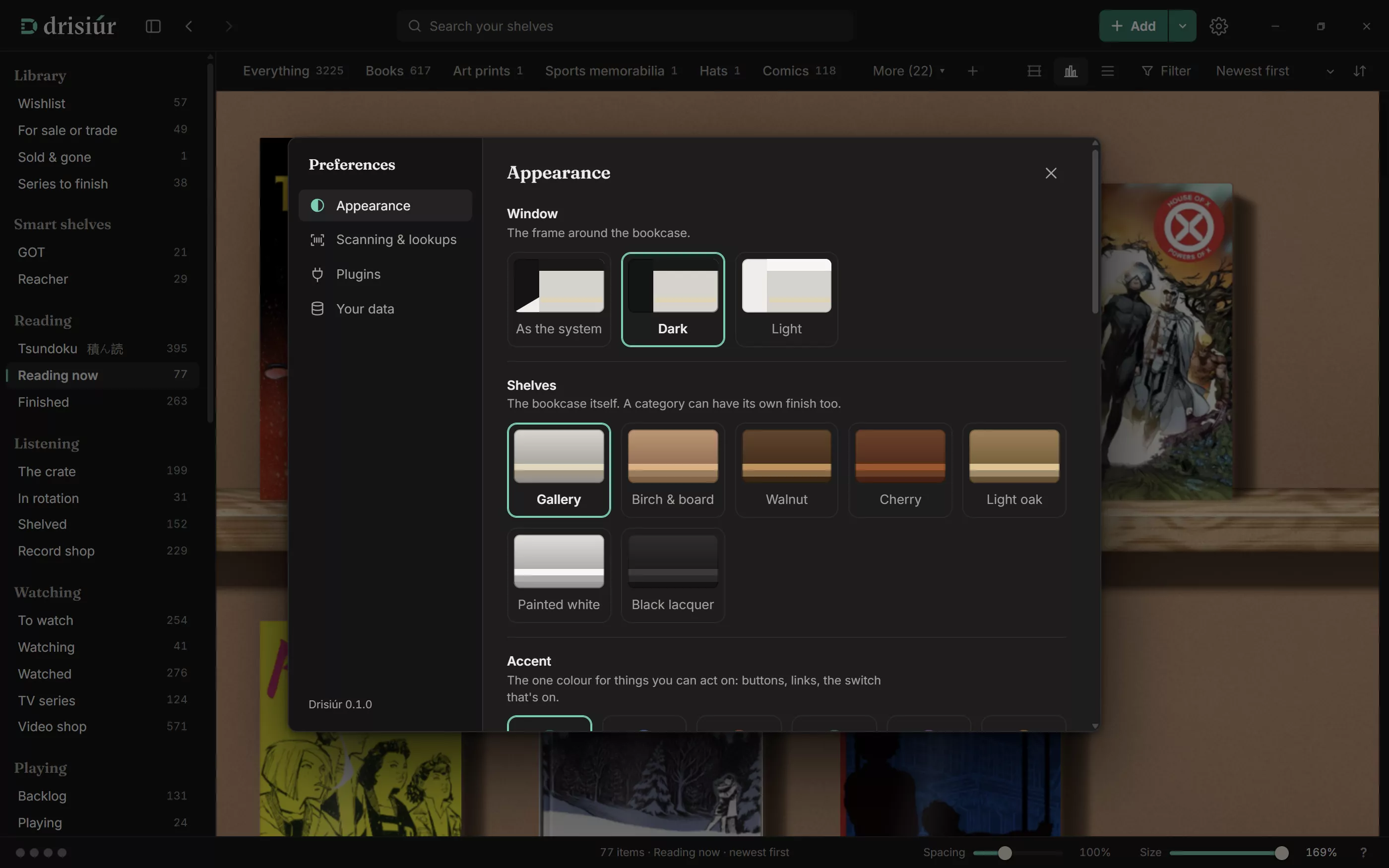
Open Preferences with the gear icon. It has four pages.
Appearance
- Window: the frame around the bookcase. As the system (the default) follows your computer’s light or dark setting, or pick Dark or Light.
- Shelves: the bookcase itself. Gallery (pale oak on soft plaster, in daylight, the default), Birch & board, Walnut, Cherry, Light oak, Painted white or Black lacquer. Each category can also have a finish of its own.
- Accent: the one colour for things you can act on and what’s selected. Verdigris is Drisiúr’s own; Ink, Garnet, Forest, Plum, Copper and Graphite are there too. The logo stays verdigris whichever you choose.
- Units: centimetres or inches, for heights and thicknesses in the details.
- Switches for Status and loan badges, Format bands on films and games, Curiosities on the shelves and Reduce motion. Reduce motion follows Windows until you change it.
- Pictures for the bands: your own pictures for the format bands across the top of film and game cases, with the size each one should be.
Scanning & lookups
- Beep when a barcode is read, on to start with.
- Ask before adding each item, off to start with. Turn it on to check each scan before it lands on the shelf.
- Your languages: when you look something up by title, editions in these languages come first and the rest go under Other languages. Leave it empty to use your computer’s language.
Plugins
The lookup services, their keys, their order and any plugins you add. It has a page of its own: Plugins.
Your data
Sharing between computers, filling in what’s missing, export, backup and the lookup cache. See Your data.
Keyboard
| Keys | Does |
|---|---|
| ? | Shows every keyboard shortcut |
| / or Ctrl + F | Searches your shelves |
| Ctrl + N | Adds something by hand |
| Ctrl + , | Opens Preferences |
| Ctrl + \ | Hides or shows the sidebar |
| Alt + ← → | Goes back or forward between shelves. On a category chip, moves it along |
| Esc | Closes what’s open, or lets go of picked items |
| Ctrl + Z | Undoes, while the message at the bottom offers it |
| Enter | Opens the item in focus |
| Space | A closer look at the artwork of the item that’s open |
| E | Edits the item that’s open |
| Delete or Backspace | Takes the item that’s open off the shelves (it asks first) |
| Ctrl + click, Shift + click | Picks one more, or a run of items, to change several at once |
| Shift + Space or Ctrl + Space | Picks the item in focus too |
| Ctrl + A | Picks everything on the shelf |
| ↑ ↓ in the list view | Moves between rows |
| ← → Home, or scroll over a crate | Flicks through the records; Enter or Space pulls out the front one |
| Alt + ↑ ↓ on a sidebar heading | Moves that section up or down |
| ↑ ↓ in a series number | Counts it up or down in whole numbers |
| Enter or , in tags | Adds the tag you’ve typed |
| ← → on a panel edge | Makes a side panel wider or narrower. Add Shift for bigger steps; double-click the edge to reset it |
| ← → in the editor | Switches between Details and Artwork |
| Ctrl + V in Artwork | Pastes a picture as the cover |
| Space or Enter in Cards mode | Reads the card in the frame now |
| Right-click a pocket | On a set’s page, takes your card out of that set |
| Right-click or Shift + click a sticker | Takes one away |
On a Mac, the Ctrl shortcuts use ⌘ instead.