Search
Search your shelves finds what you type anywhere in the title, creators, series, tags, genre, barcode or notes. Accents don’t matter: “bjork” finds Björk.
Filters
Filter this shelf lists what’s on the shelf, with counts, by:
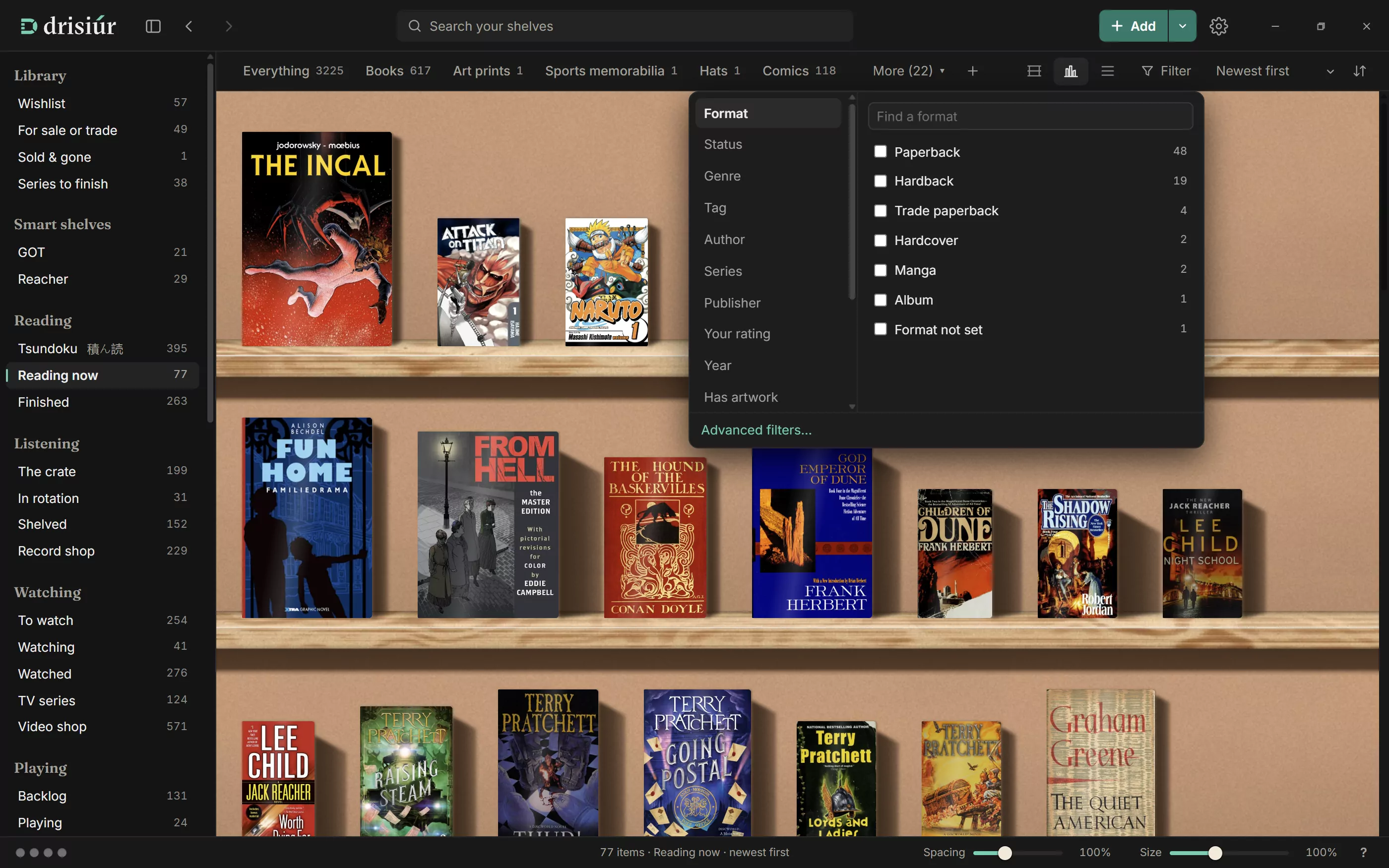
Category · Format · Status · Genre · Tag · Creator · Series · Platform · Publisher · Condition · Grade · Where it lives · Rating · Year · Price paid · Worth now · Has artwork · Has a barcode · Out on loan · Title · Added · Film or TV · Notes, and any fields of your own.
Pick values to narrow the shelf. Active filters show as chips; press one to take it off. Each shelf keeps its own filters.
Smart shelves
Any filters you’ve set can be kept as a smart shelf: press Save as smart shelf at the end of the filter chips and give it a name. It goes in the sidebar, keeps your sort order too, and stays up to date as you add things. × beside it in the sidebar deletes it.
Advanced filters builds a filter from conditions: + Add a condition, then choose Match all or Match any.
With a smart shelf open, Rename changes its name. Change its filters or order and you get Update “its name” to keep the change, or Save as new to make another.
Smart shelves are kept with your library, so they’re in your backups and travel with a shared library.
Sorting
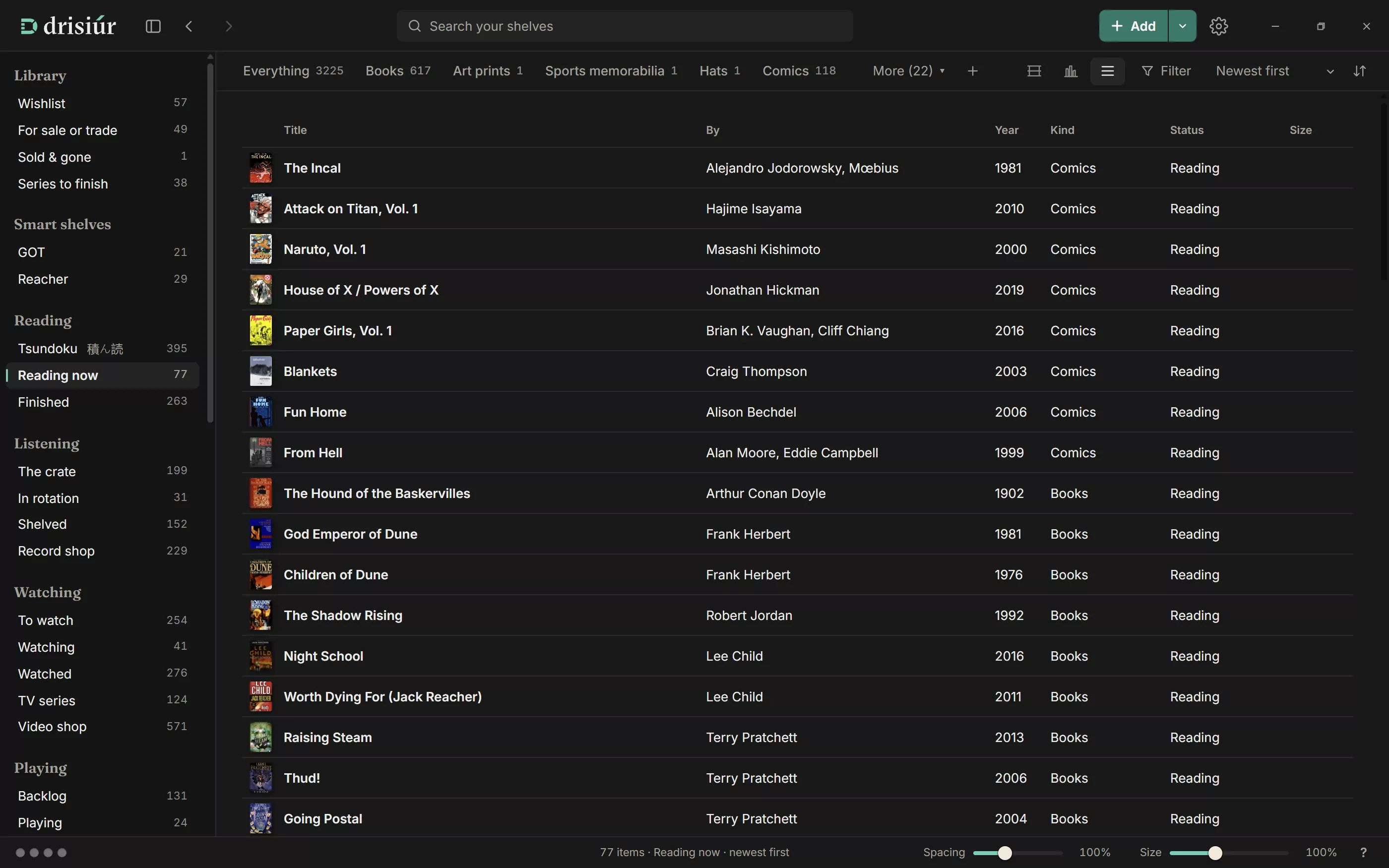
Sort by Newest first, Title, Author, Genre, Series, Your rating, Year or Worth now, and turn on Reverse the order to flip it. Each category uses its own names for these, so Author becomes Artist on Music, and a category’s own fields are in the list too. Shelves with graded things can also sort by Grade, best first. In the list view, click the Title, By or Year heading.
The sidebar
- Library: Wishlist, On order, For sale or trade, Sold & gone and Series to finish. Each shows once it has something in it.
- Status lists for each kind: Reading, Listening, Watching, Playing and the rest, including the Tsundoku pile and the crate, the record shop, and TV series.
- Cards: Sets, Trade list, Decks, Grading and Sealed product. See Trading cards.
- Loans: Out on loan and Overdue.
- Smart shelves.
- Group by Author or Series.
- Cabinet, with your curiosities.
- Tools: Tags, Stats & reports and Recently removed.
Tags
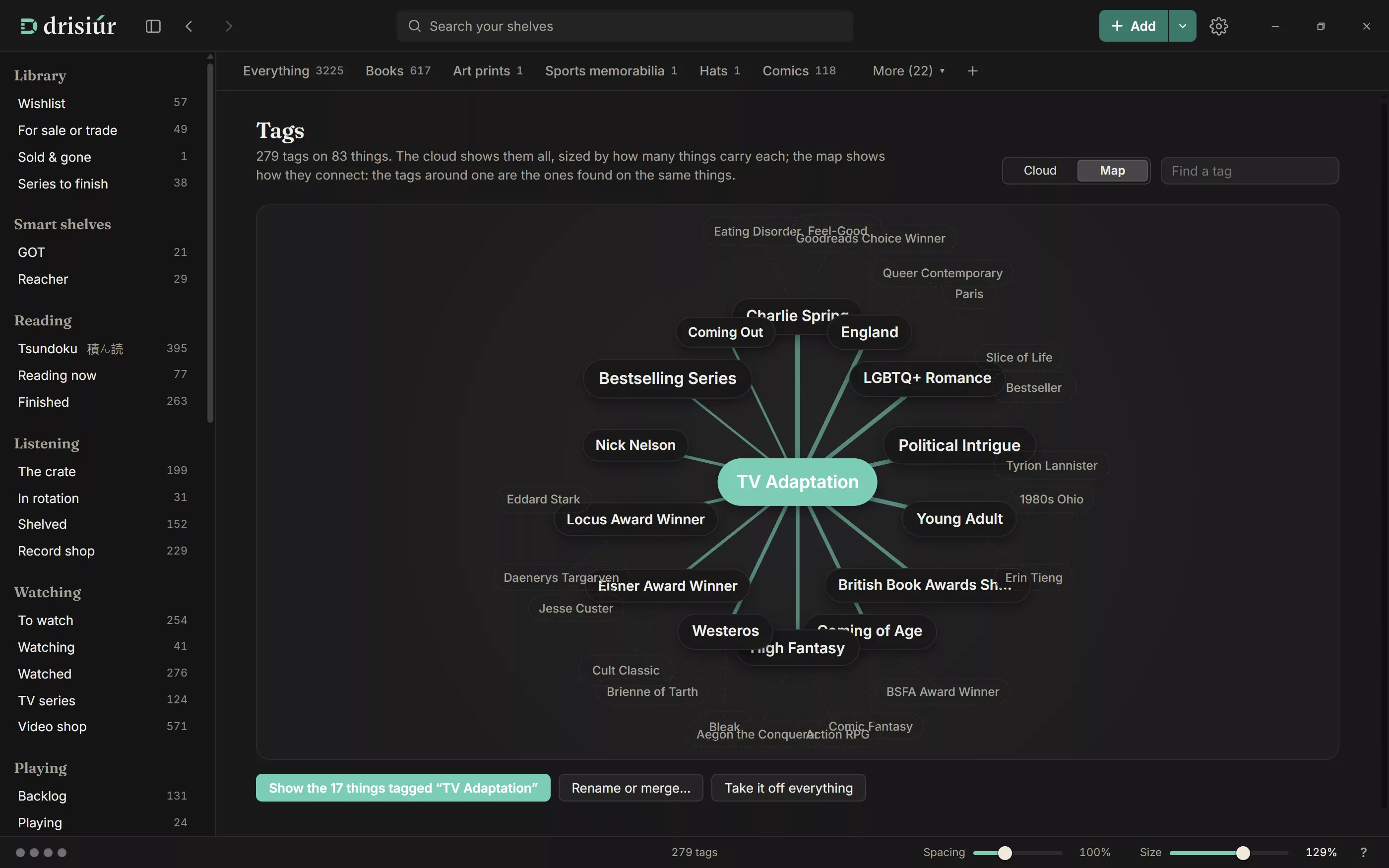
Tags, under Tools, shows every tag as a Cloud or a Map, most used first or A to Z, with Find a tag. Pick one to Rename or merge… it, or Take it off everything.
Stats and reports
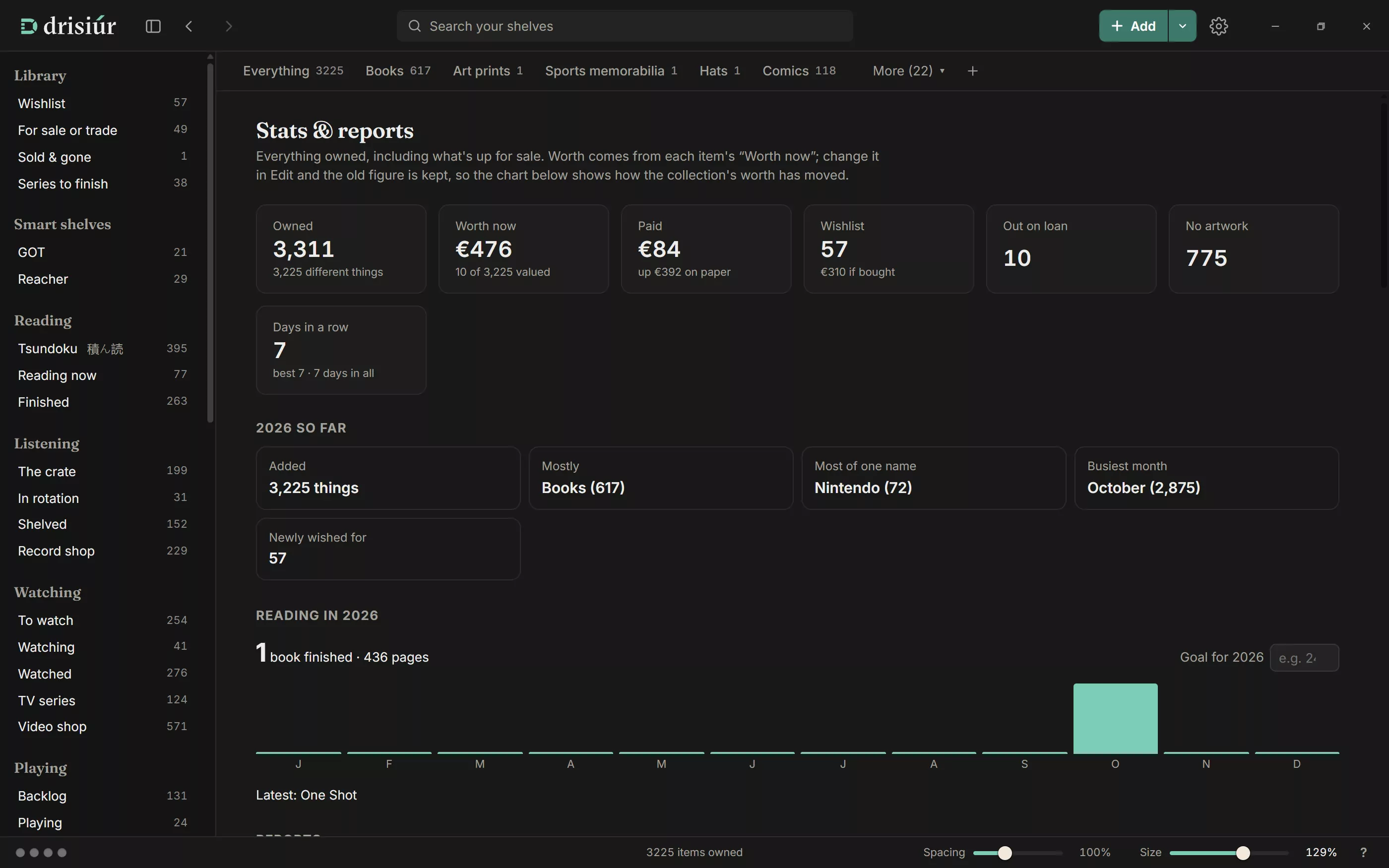
Stats & reports in the sidebar makes three reports, saved as web pages in your library’s exports folder:
- Insurance report: every item with its photo, serial, condition, price paid and worth, totalled by category. Print it or save it as a PDF.
- Collection to carry: one searchable page with everything you own and want, to keep on your phone in a shop or put online to share.
- Shopping list: your wishlist, what’s on order and the gaps in your series, to print or take with you.
The page also keeps your numbers: your days in a row, what you’ve paid including fees, what you’ve made selling, how this year is going, and a reading goal for the year.
Its Storage section shows how much room the library, covers, cache and backups take. It can keep only the newest three backups, and has Clear kept web answers and Clear kept cut-outs to free up space.