The details panel
Click an item to open its details. The picture at the top shows it as it stands on your shelf; press Space, or click it, for the original artwork. When the panel is wide enough, the picture sits beside the details.
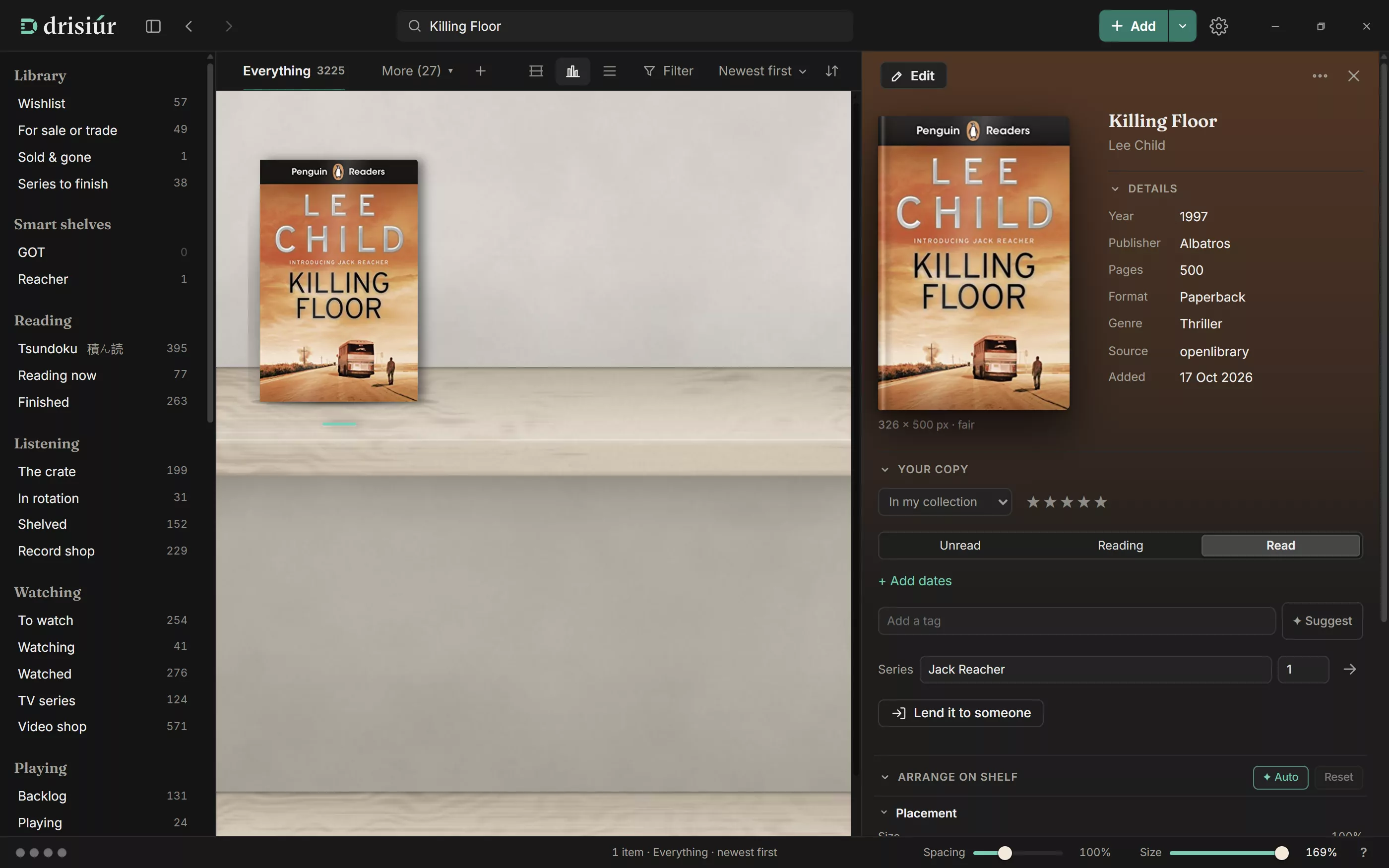
The panel folds into Details, Your copy and Notes, and each stays open or closed as you leave it. Your copy holds:
- Ownership: In my collection, On my wishlist, On order, For sale or trade, Sold, or Previously owned. Drisiúr records the date each time it changes.
- Rating: up to five stars; × clears it.
- Status: three buttons, named for the category, such as Unread, Reading and Read.
- Tags and series: see below.
- Lend it to someone: see Lending.
- Other editions, Links, and Worth now with how much it has changed since you first recorded it.
Along the top: Edit (or press E), the ⋯ menu, and Close. The menu has Refresh from the web, which fills in anything empty and looks for better artwork without overwriting what you’ve typed, and Take off the shelves. For a card filed in a set it also has Take it out of its set.
The names under the title are links: click one to see everything by that person.
Tags and series
- Type a tag and press Enter, or a comma, to add it. ✦ Suggest offers ideas as “+ tag” chips, with Add all. It asks Claude when there’s a key, and goes on the item’s own details when there isn’t.
- Books and comics have a + Series link until they’re in a series. Once one is, the → beside it shows the whole series on the shelves.
The reading log
Books keep a reading log. + Add dates records when you started and finished, Read it again starts another read, and Didn’t finish marks one you put down. The panel shows how many times you’ve read it.
Editing
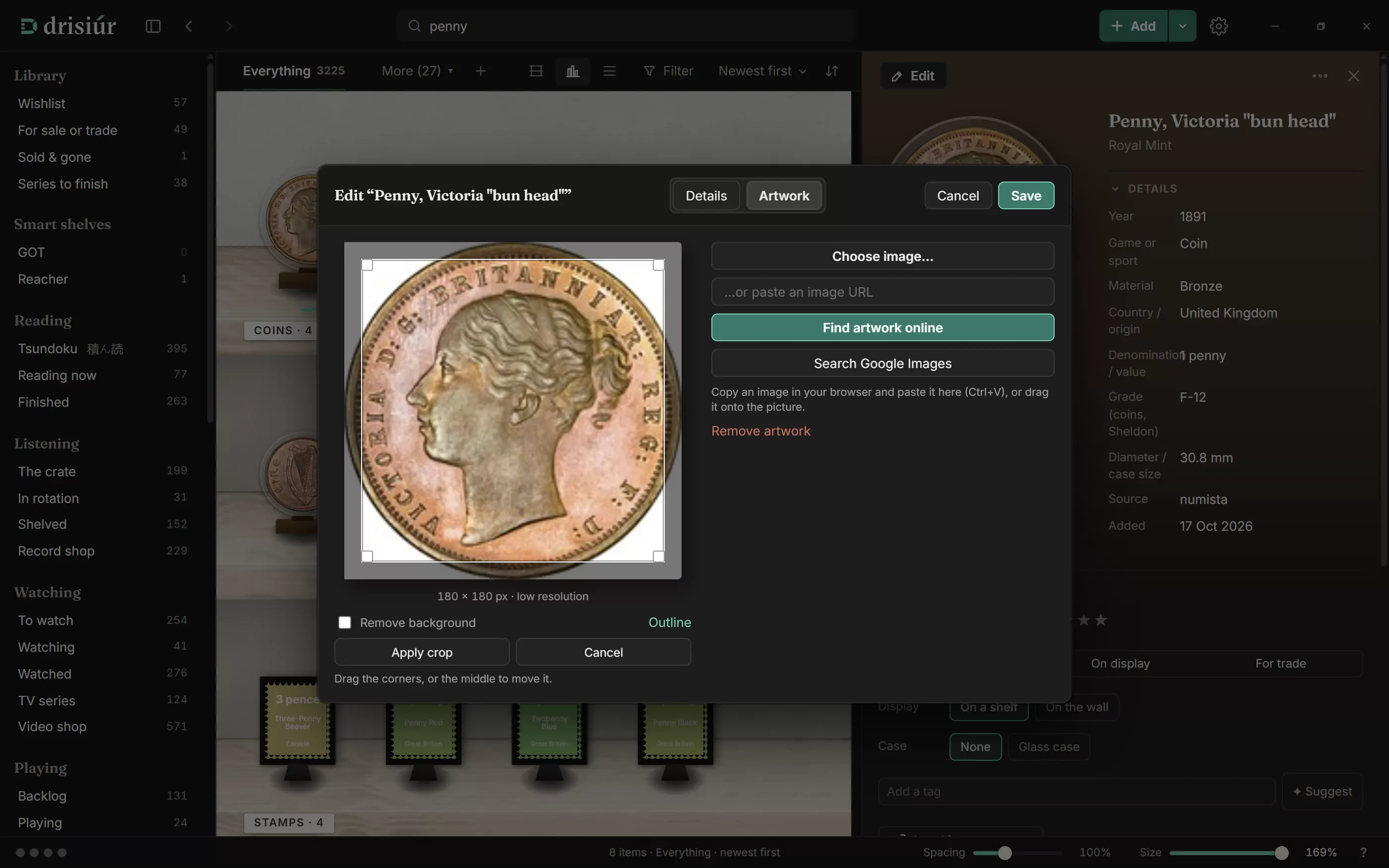
Edit opens the editor with two tabs, Details and Artwork. Change the kind, any field, or add a field of your own, then Save.
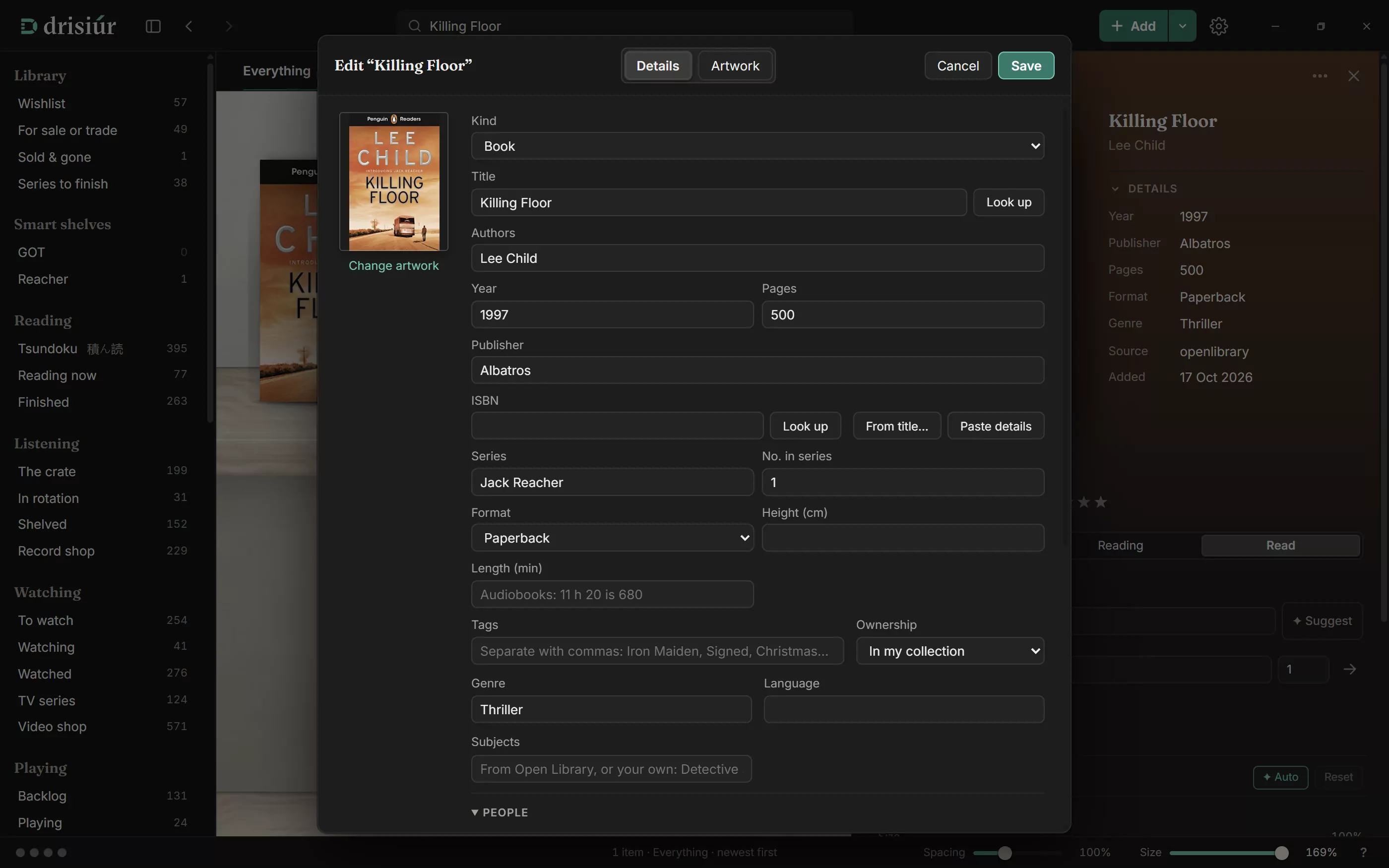
Notes, at the bottom of the Details tab, is for anything else worth remembering: where you found it, who it came from, what’s special about this copy.
Camera and lens names fill in from the Lensfun database as you type.
Artwork
- Choose image… for a picture on your computer, HEIC and AVIF included. Or drag one onto the editor, or paste it with Ctrl + V.
- Paste a web address. A shop’s product page works too: Drisiúr takes the page’s preview picture.
- Find artwork online asks every lookup service for its pictures: the exact edition, other editions, pressings and posters. Pick yours.
- Search Google Images opens the search in your browser.
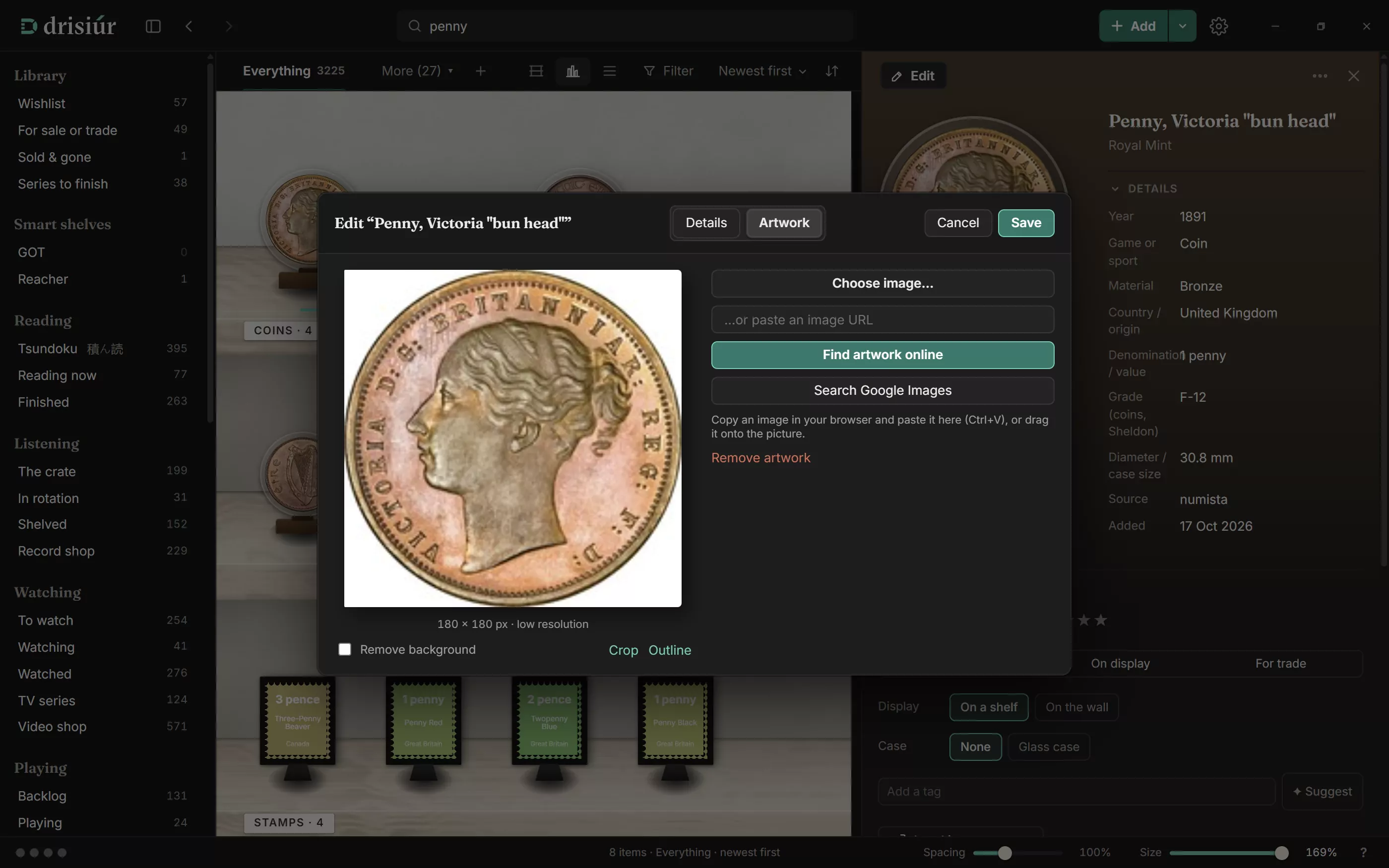
Pictures can be up to 8 MB, in JPEG, PNG, WebP, AVIF or GIF. Covers are downloaded and kept with your library, so they stay when you’re offline.
Removing a background
For the things you photograph yourself, Remove background takes away the backdrop. It works on your computer, by colour; nothing is sent anywhere.
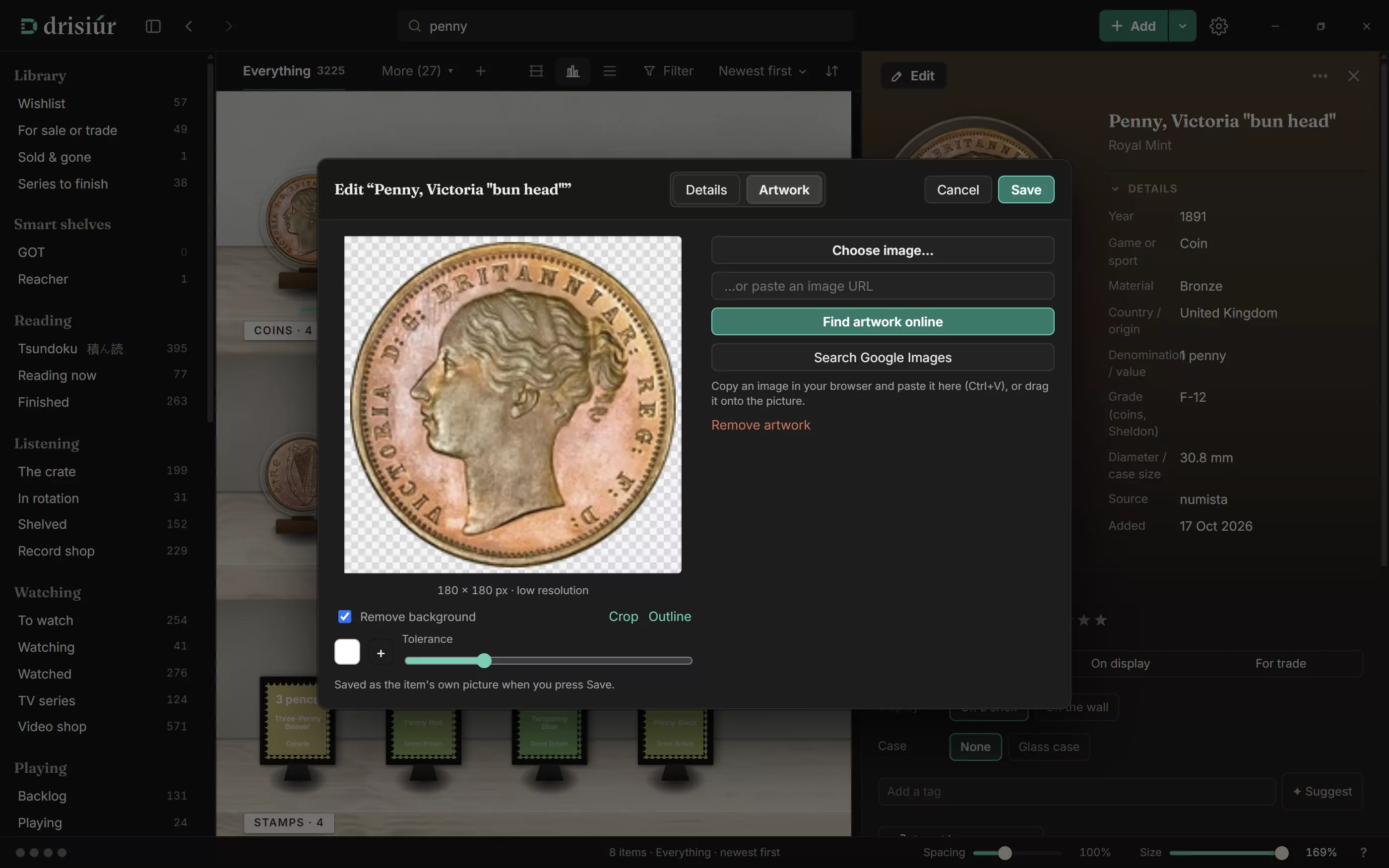
- Press + to take away more colours, and set Tolerance for how close a colour has to be.
- Crop trims the picture.
- Outline lets you click round the object instead, then Cut out.
- Tidy the edges smooths the edge of the cut-out.
- Restore original picture undoes it all.
Product photos of cameras are cut out automatically, and the white backdrop is trimmed from shop photos of most physical things.
How it’s shown
Some things can stand on the shelf more than one way. The choice is in Your copy, and only shows up for the things it applies to:
- CDs, under Tray: Black tray, Clear tray or Card sleeve, for a card sleeve or digipak.
- Cassettes, under Case: Clear box, or Black back for a case whose back half is black.
- Graded comics, under Slab: In its slab or Out of the slab.
- Box sets and board games, under Show as: drawn by Drisiúr, or a photo of the box.
- Cards, under Holder: in a slab or toploader, or raw on a stand. Cards have a page of their own.
- LEGO: In its box or Out of the box. A sealed set shows its box, from BrickLink; a built one shows the model, from Rebrickable.
- Glass case: figures, Gundam, cameras, hardware, bottles, tools, LEGO and the things in your own categories can stand under a glass case.
- Bottles: set the status to Open and a How full slider appears. The dates it was opened and finished are recorded for you.
Lending
In the details panel, press Lend it to someone, type a name into Who to? and press Lend. The item shows Lent to Deirdre · 12 days ago, with a badge on the shelf. Press Returned when it comes back.
- The sidebar’s Loans section lists everything Out on loan, and what’s Overdue: anything out for more than 30 days.
- There are no due dates or reminders. Overdue just means it’s been out a long time.
- Each item has one loan at a time.
Taking things off
⋯ → Take off the shelves removes an item, and the message that follows has Undo. Removed items wait in Recently removed in the sidebar for 30 days: press Put it back and it’s as it was, details and all.
Changes to many things at once, and imports, can be undone the same way, from the message that follows.
If you’ve sold or given something away, set its Ownership to Sold or Previously owned instead. It leaves the shelves but stays in the sidebar’s Sold & gone.