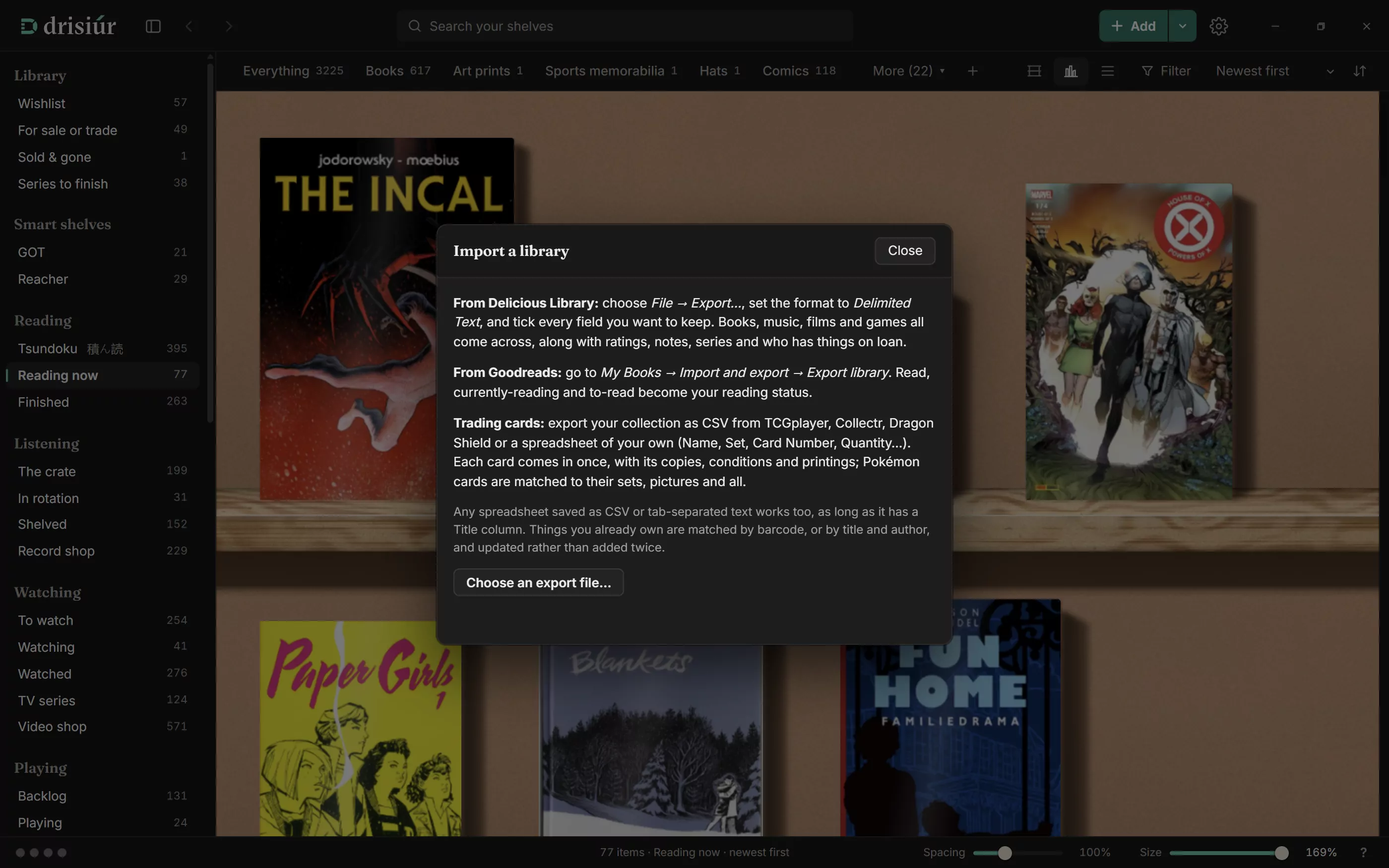
Choose Import a library from the arrow beside Add, then Choose an export file…. Drisiúr reads CSV, tab-separated and text exports, works out the separator and the text encoding itself, and matches columns by their names. There’s no column-matching step.
Importing the same file again updates what’s there instead of adding it twice. Rows are matched by barcode, or by title and first creator.
From Delicious Library
- Export from Delicious Library.On the Mac, choose File → Export… and pick Delimited Text.
- Bring the file to Windows.A USB stick, a shared folder or email: it’s one text file.
- Import it.Add ▾ → Import a library → Choose an export file…
What comes across: title, creators, type, format, publisher, year, pages, rating, notes, series and number, read, played or watched status, who it’s lent to, platform, running time, size, genre and IMDb link. Ratings out of ten or as a percentage become stars.
What doesn’t:
- Covers. A Delimited Text export has no pictures in it. Books get their Open Library cover from the ISBN; for everything else, use Fetch artwork & details.
- Purchase price and condition. Drisiúr lists any column it couldn’t use under Not brought across. To keep them, rename the columns
extra.price_paidandextra.conditionin a spreadsheet and import again. - Loan dates. Loans come across with the day you import as the day they were lent.
Notes land in Notes, at the bottom of each item’s Details tab, where you can edit them. They show in the details panel, and search finds them.
From Goodreads
Export your library from Goodreads (My Books → Import and export → Export Library) and import the CSV. Drisiúr recognises it, and brings across title, author and additional authors, ISBN, your rating and review, publisher, pages, year, binding, private notes, the date you read it, and your shelf: read, currently reading or to read.
From StoryGraph
Export your library from StoryGraph as a CSV and import it. Drisiúr brings across title, authors, ISBN, format, your star rating and review, and your read status, including did-not-finish, which is marked as put down. Moods and tags become tags, and the dates you read each book become its reading log.
Trading card collections
Card collections from TCGplayer, Collectr or Dragon Shield import directly, and so does any CSV with a card name, set and card number. Drisiúr reads the quantity and trade quantity, condition, finish, language, rarity, set code, price paid, game and grade.
- Each card becomes one item, with a line of copies for each condition or printing. Cards are told apart by set, number and language.
- Pokémon, Magic, Yu-Gi-Oh!, Lorcana, One Piece and Digimon cards are then matched to their sets for pictures: “Matching cards to their sets…”.
From a spreadsheet
Any CSV with a Title column works. Drisiúr recognises columns by their usual names: Title, Creator or Author, Type, Format, Publisher, Year, Pages, Rating, Notes, Series, Series #, Status, Loaned To, Platform, Genre, Collection, Ownership, Review, Tags or Moods, Dates Read, and a Cover or Image column with a web address. Card columns such as Quantity, Condition, Language, Set, Card Number and Grade are read too.
- A
Collectioncolumn puts each row into a category of your own with that name. - Any column named
extra.somethingbecomes a detail called “something”. - Columns it doesn’t know are listed under Not brought across.
After an import
Press Fetch artwork & details to look everything up. It works through the list at about one a second, in the background, with a Stop button at the bottom of the shelves. Preferences → Your data → Fill in what’s missing does the same for the whole library at any time.
Export
Preferences → Your data → Export… writes to the exports folder beside your library:
- CSV, for a spreadsheet: title, creators, kind, year, publisher, pages, identifier, series, series_index, status, rating, format, height_cm, width_cm, notes, cover_url, source, added_at, on_loan_to, grade, platform, and a
detailscolumn with everything else, such as tags, price paid and worth. - JSON: every item, exactly as Drisiúr keeps it.
- HTML: one page with your shelf on it, to share. Covers are linked from where they came from rather than copied in.